How to Remove Background Noise and Echo in Audacity 2021 (New Effects)
Filmmaker’s need to remove background noise is very common. Whether it’s for a short film, feature film or an interview, removing background noise as an indie filmmaker is usually left to yourself or the editor. In larger-scale Hollywood budget films there are specialists on board to do this; but fear not, there are easy-to-use platforms out there that simplify the process, and make the outcome crisp.
The platform we’re focusing on today is Audacity. Audacity is an open-source sound editing platform which is free to use, easy to navigate and has consistent updates, making it one of the main audio editing programs used by content creators. Audacity’s minimalistic build is key to sound editing, it’s very simple and allows you to focus on the processes. Here we breakdown how to remove background noise in Audacity.
Removing background noise in Audacity
1. To remove the noise first download Audacity, you can download Audacity here. Once you have downloaded Audacity create a new file then click File > Import and select the recording you are looking to reduce the background noise on.
2. Select the silent part of your audio clip so it’s just noise.
3. Go to the effects menu and scroll down to the noise removal tab and click.
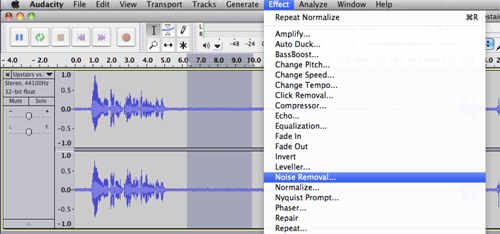
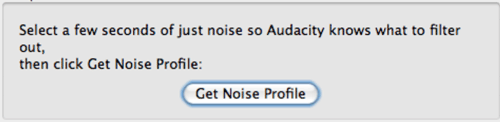
4. You will then get a pop up asking you to “Get noise profile”. This allows Audacity to know what to filter out. It basically picks up what is seen as background noise, so it has a profile on what background noise to remove from your sound file.
5. Now select and highlight all the audio you wish to remove the background noise from, go to the effects menu and select noise removal in the menu.
6. Adjust the settings to suit, once you’re happy with your settings click ok.

7. Finally, listen over your audio and ensure it sounds correct. Once you are happy with the audio you can export. To export your clip click: File > Export and select the file type. You can export to MP3 or WAV in the export dropdown menu but there are other export types if you click File > Export > Export Audio. Once you have adjusted the settings click ok to export.
We hope you enjoyed this article on how to remove background noise audacity, check out our other blogs.
How Do You Remove Echo in Audacity?
Before we proceed, make sure that you have Audacity downloaded and installed on your computer. If not, you can always download it from the official website.
Also, note that this process is very complex and requires a high understanding of how sound recording works. Otherwise, you’ll just have to make do and experiment with all the features until you’re satisfied with the result.
With that in mind, let’s take a look at how you can remove echo in Audacity with and without a plug-in.
Reducing Echo Without a Plug-In
After downloading and starting Audacity, follow these steps:
- Click File at the top of the screen.

- Select Open.

- A window will appear. At the bottom of the window, change Files of type to All supported types.

- Click on the file you want to edit, then click Open.

- Select the segment of the audio file you’d like to edit. You can do this by clicking on one end of the segment and dragging the mouse until you reach the other. If you want to edit the whole file, press Ctrl+A on Windows or Command+A on Mac.

- Open the Effect menu at the top of the screen.

- Select Noise Reduction.

- Increasing the Noise reduction slider should greatly improve audio quality.

- If turning up noise reduction decreases the volume, go to the effects menu and choose Amplify to increase the volume.

- Find the compressor in the Effects menu. The main thing you should do is change up the ratio, but you can also change up the noise floor and threshold if necessary.

- Depending on your current sound pitch inside of the file, you might need to use a low pass or a high pass filter. They are located in the bottom half of the Effects menu. A low pass filter helps if your audio is too high-pitched, while a high pass filter comes in handy if the audio sounds too low or too muffled. Stick to changing just the Rolloff.

- Find the Equalization effect and switch from Draw Curves to Graphic EQ. You may find the latter simpler to use because it gives you control over the sliders and lets you set their values that way, while the former forces you to draw the equalizer yourself. If you need to fix up your low tones, focus on the sliders to the left. The middle bars affect the mid-tones, while the bars on the right should be altered to affect the higher tones.

- Proceed by clicking the File menu on top of the screen and going to Export Audio.

- Choose the file type in the Save as type menu. The best-known ones are mp3 (compressed) and wav (lossless). Make sure that you don’t accidentally overwrite the old file.

- Go to File and select Save Project As to save the project file.

Reducing Echo with a Plug-In
There are lots of free Plug-ins for Audacity, but for this particular issue, Noise Gate is the one you need, as it helps improve the sound quality and can help reduce the echo.
If you want to edit the whole file, press Ctrl+A on Windows or Command+A on Mac.Then
- > Go to Effects > Select Noise Gate (At Bottom).

To reduce the echo, start with an “Attack/Decay” of 75, “Gate threshold” of -30, and a “Level reduction” of -100. Use these settings as a starting point. If the echo doesn’t change, increase the Gate threshold until the echo is reduced. If important audio gets cut, reduce it.
What’s most important is that you set the gate threshold. After you do that, tweak the level reduction and attack/decay settings until you’re satisfied with the result.
Final Thoughts
It’s impossible to completely remove the echo, but it isn’t impossible to reduce it. This is a quite difficult process, but if you’re skilled or persistent enough, you might find the results satisfactory. Just keep in mind that this requires lots of playing around with all kinds of different values and effects because different recording settings require different approach methods.
Were you successful in reducing the echo of your audio file? Which method did you find more helpful? Let us know in the comments below.

No comments:
Post a Comment