Thursday, November 25, 2021

Installing Python 3 in Windows and Linux by www.BlueTEXT.in

Introduction

Python is a widely used high-level programming language first launched in 1991. Since then, Python has been gaining popularity and is considered one of the most popular and flexible server-side programming languages.

Unlike most Linux distributions, Windows does not come with the Python programming language by default. However, you can install Python on your Windows server or local machine in just a few easy steps.

Prerequisites

  • A system running Windows 10 with admin privileges

  • Command Prompt (comes with Windows by default)

  • A Remote Desktop Connection app (use if you are installing Python on a remote Windows server)

Python 3 Installation on Windows

Step 1: Select Version of Python to Install

The installation procedure involves downloading the official Python .exe installer and running it on your system.

The version you need depends on what you want to do in Python. For example, if you are working on a project coded in Python version 2.6, you probably need that version. If you are starting a project from scratch, you have the freedom to choose.

If you are learning to code in Python, we recommend you download both the latest version of Python 2 and 3. Working with Python 2 enables you to work on older projects or test new projects for backward compatibility.

Note: If you are installing Python on a remote Windows server, log in via Remote Desktop Protocol (RDP). Once you log in, the installation procedure is the same as for a local Windows machine.

Step 2: Download Python Executable Installer

  1. Open your web browser and navigate to the Downloads for Windows section of the official Python website.

  2. Search for your desired version of Python. At the time of publishing this article, the latest Python 3 release is version 3.7.3, while the latest Python 2 release is version 2.7.16.

  3. Select a link to download either the Windows x86-64 executable installer or Windows x86 executable installer. The download is approximately 25MB.

Note: If your Windows installation is a 32-bit system, you need the Windows x86 executable installer. If your Windows is a 64-bit version, you need to download the Windows x86-64 executable installer. There is nothing to worry about if you install the “wrong” version. You can uninstall one version of Python and install another.

Step 3: Run Executable Installer

1. Run the Python Installer once downloaded. (In this example, we have downloaded Python 3.7.3.)

2. Make sure you select the Install launcher for all users and Add Python 3.7 to PATH checkboxes. The latter places the interpreter in the execution path. For older versions of Python that do not support the Add Python to Path checkbox, see Step 6.

3. Select Install Now – the recommended installation options.

For all recent versions of Python, the recommended installation options include Pip and IDLE. Older versions might not include such additional features.

4. The next dialogue will prompt you to select whether to Disable the path length limit. Choosing this option will allow Python to bypass the 260-character MAX_PATH limit. Effectively, it will enable Python to use long path names.

The Disable path length limit option will not affect any other system settings. Turning it on will resolve potential name length issues that may arise with Python projects developed in Linux.

Step 4: Verify Python Was Installed On Windows  

  1. Navigate to the directory in which Python was installed on the system. In our case, it is C:\Users\Username\AppData\Local\Programs\Python\Python37 since we have installed the latest version.

  2. Double-click python.exe.

  3. The output should be similar to what you can see below:

Note: You can also check whether the installation was successful by typing python –V in Command Prompt. The output should display your installed version of Python. In our case, it is “Python 3.7.3.”

Step 5: Verify Pip Was Installed

If you opted to install an older version of Python, it is possible that it did not come with Pip preinstalled. Pip is a powerful package management system for Python software packages. Thus, make sure that you have it installed.

We recommend using Pip for most Python packages, especially when working in virtual environments.

To verify whether Pip was installed:

  1. Open the Start menu and type "cmd."

  2. Select the Command Prompt application.

  3. Enter pip -V in the console. If Pip was installed successfully, you should see the following output:

Pip has not been installed yet if you get the following output:

'pip' is not recognized as an internal or external command,

Operable program or batch file.

If your version of Python is missing Pip, see our article How to Install Pip to Manage Python Packages on Windows.

Step 6: Add Python Path to Environment Variables (Optional)

We recommend you go through this step if your version of the Python installer does not include the Add Python to PATH checkbox or if you have not selected that option.

Setting up the Python path to system variables alleviates the need for using full paths. It instructs Windows to look through all the PATH folders for “python” and find the install folder that contains the python.exe file.

1. Open the Start menu and start the Run app.

run dialog box

2. Type sysdm.cpl and click OK. This opens the System Properties window.

3. Navigate to the Advanced tab and select Environment Variables.

4. Under System Variables, find and select the Path variable.

5. Click Edit.

6. Select the Variable value field. Add the path to the python.exe file preceded with a semicolon (;). For example, in the image below, we have added ";C:\Python34."

How to add the Variable Value durring python3 windows installation.

7. Click OK and close all windows.

By setting this up, you can execute Python scripts like this: Python script.py

Instead of this: C:/Python34/Python script.py

As you can see, it is cleaner and more manageable.

Step 7: Install virtualnv (Optional)

You have Python, and you have Pip to manage packages. Now, you need one last software package - virtualnv. Virtualnv enables you to create isolated local virtual environments for your Python projects.

Why use virtualnv?

Python software packages are installed system-wide by default. Consequently, whenever a single project-specific package is changed, it changes for all your Python projects. You would want to avoid this, and having separate virtual environments for each project is the easiest solution.

To install virtualnv:

1. Open the Start menu and type "cmd."

2. Select the Command Prompt application.

3. Type the following pip command in the console:

C:\Users\Username> pip install virtualenv

Upon completion, virtualnv is installed on your system.

Installing Python 3 on Linux

https://d33wubrfki0l68.cloudfront.net/02962eb19c0069740d16e67b5ba7c613238c8b9a/30ed2/_images/34435689480_2e6f358510_k_d.jpg

This document describes how to install Python 3.6 or 3.8 on Ubuntu Linux machines.

To see which version of Python 3 you have installed, open a command prompt and run

$ python3 --version

If you are using Ubuntu 16.10 or newer, then you can easily install Python 3.6 with the following commands:

$ sudo apt-get update
$ sudo apt-get install python3.6

If you’re using another version of Ubuntu (e.g. the latest LTS release) or you want to use a more current Python, we recommend using the deadsnakes PPA to install Python 3.8:

$ sudo apt-get install software-properties-common
$ sudo add-apt-repository ppa:deadsnakes/ppa
$ sudo apt-get update
$ sudo apt-get install python3.8

If you are using other Linux distribution, chances are you already have Python 3 pre-installed as well. If not, use your distribution’s package manager. For example on Fedora, you would use dnf:

$ sudo dnf install python3

Note that if the version of the python3 package is not recent enough for you, there may be ways of installing more recent versions as well, depending on you distribution. For example installing the python3.9 package on Fedora 32 to get Python 3.9. If you are a Fedora user, you might want to read about multiple Python versions available in Fedora.

Working with Python 3

At this point, you may have the system Python 2.7 available as well.

$ python

This might launch the Python 2 interpreter.

$ python3

This will always launch the Python 3 interpreter.

Setuptools & Pip

The two most crucial third-party Python packages are setup tools and pip.

Once installed, you can download, install and uninstall any compliant Python software product with a single command. It also enables you to add this network installation capability to your own Python software with very little work.

Python 2.7.9 and later (on the python2 series), and Python 3.4 and later include pip by default.

To see if pip is installed, open a command prompt and run

$ command -v pip

To install pip, follow the official pip installation guide - this will automatically install the latest version of setup tools.

Note that on some Linux distributions including Ubuntu and Fedora the pip command is meant for Python 2, while the pip3 command is meant for Python 3.

$ command -v pip3

However, when using virtual environments (described below), you don’t need to care about that.

Pipenv & Virtual Environments

The next step is to install Pipenv, so you can install dependencies and manage virtual environments.

A Virtual Environment is a tool to keep the dependencies required by different projects in separate places, by creating virtual Python environments for them. It solves the “Project X depends on version 1.x but, Project Y needs 4.x” dilemma, and keeps your global site-packages directory clean and manageable.

For example, you can work on a project which requires Django 1.10 while also maintaining a project which requires Django 1.8.

So, onward! To the Pipenv & Virtual Environments docs!

Introduction to Python in simple Terms by www.BlueTEXT.in

Python is a general-purpose interpreted, interactive, object-oriented, and high-level programming language. This course is designed for software programmers who need to learn the Python programming language from scratch.

Introduction to Python

Python is a high-level, interpreted, interactive and object-oriented scripting language that finds its application in many areas like -
  • Web scripting.
  • 3d Modelling (Blender).
  • Desktop Applications -` Games (Pygame).
  • Scientific usage (SciPy/NumPy).
Python source code is available under the GNU General Public License (GPL). There are two major Python versions, Python 2 and Python 3.

Python features

  • Open Source and Simple to use.
  • Very powerful and Ubiquitous.
  • Supports broad standard library.
  • Supports interactive testing and debugging.
  • Established interface with all major DB's.
  • Runs on a variety of hardware platforms.
Technical features of Python

  • Object-oriented (supports both functional and structured programming)
  • Dynamically and strongly typed
  • Whitespace delimited (Indentation)
  • Scripting language which supports large applications.
  • High-level dynamic data types and supports dynamic type checking
  • Automatic garbage collection
  • Interpreted makes compiler interact with a developer.
  • Easy integration with CC++COMActiveXCORBA and Java.

Python Implementations

CPython - Python implementation on standard C language.
Jython - Python implementation with Java virtual machine to blend with Java.
Pypy - Python implemented in Python and its Just-in-time compiler making it fastest.
Iron Python - for windows, which implements common runtime libraries to interface with. NET.

Difference between Python2 & Python3


Comparison Parameter Python 2 Python 3
Year of Release Python 2 was released in the year 2000. Python 3 was released in the year 2008.
“Print” Keyword In Python 2, print is considered to be a statement and not a function. In Python 3, print is considered to be a function and not a statement.
Storage of Strings In Python 2, strings are stored as ASCII by default. In Python 3, strings are stored as UNICODE by default.
Division of Integers On the division of two integers, we get an integral value in Python 2. For instance, 7/2 yields 3 in Python 2. On the division of two integers, we get a floating-point value in Python 3. For instance, 7/2 yields 3.5 in Python 3.
Exceptions In Python 2, exceptions are enclosed in notations. In Python 3, exceptions are enclosed in parentheses.
Variable leakage The values of global variables do change in Python 2 if they are used inside a for-loop. The value of variables never changes in Python 3.
Iteration In Python 2, the xrange() function has been defined for iterations. In Python 3, the new Range() function was introduced to perform iterations.
Ease of Syntax Python 2 has more complicated syntax than Python 3. Python 3 has an easier syntax compared to Python 2.
Libraries A lot of libraries of Python 2 are not forward compatible. A lot of libraries are created in Python 3 to be strictly used with Python 3.
Usage in today’s times Python 2 is no longer in use since 2020. Python 3 is more popular than Python 2 and is still in use in today’s times.
Backward compatibility Python 2 codes can be ported to Python 3 with a lot of effort. Python 3 is not backwards compatible with Python 2.
Application Python 2 was mostly used to become a DevOps Engineer. It is no longer in use after 2020. Python 3 is used in a lot of fields like Software Engineering, Data Science, etc.


Print:

  • Python 2 treats “print” as a statement rather than a function.
  • Python 3 explicitly treats “print” as a function.

Integer Division:

  • Python 2 treats numbers without any digits. (Output of expression 3 / 2 is 1, not 1.5). To get the result 1.5, you would have to write 3.0 / 2.0.
  • Python 3 evaluates 3 / 2 as 1.5 by default, which is more intuitive for new programmers.

List Comprehension Loop Variables: Common name for the variables that are iterated over in a list comprehension as a global variable get interchanged. This is fixed in Python 3.

Unicode Strings: By default Python 3 stores strings as Unicode unlike Python 2.

Raising Exceptions: Python 3 requires a different syntax for raising exceptions.

  • Python 2:raise IOError, “some error message”
  • Python3: raise IOError(“some error message”)

What is the Role of a - Machine Learning Engineer


This course outlines the role's details of a Machine Learning Engineer. You will understand the practical on-the-job details of the role.

ML Engineer

What is a typical day in the life of a Machine Learning Engineer?
  1. ML Engineers work more on the engineering and less on the science part of the data problem
  2. They work on
    • Data Extraction
    • Data Cleansing
    • Model Building
    • Model Deployment

ML Engineer Role

Can you explain with an example?

Say, for example, the business wants to develop an application that can classify the user sentiments on the customer's Twitter handle and create some charts based on the same. An ML Engineer would be doing the following:
  • Creating the interface from Customer's Application to Twitter API
  • Extracting Data from Twitter API
  • Cleaning the Data
  • Building a Sentiment Classification Model
  • Deploying the Model to Customer's Ecosystem
  • Maintaining the application

Big Data & DevOps

Should an ML Engineer have any knowledge of Big Data and DevOps?

Yes, most of the big enterprises maintain and archive their data in a Big Data ecosystem. Knowing how to pull the data and work on top of it will help an ML Engineer.

Do ML Engineers need to know DevOps concepts? If yes, to what extent should they be familiar?

Yes, Absolutely. DevOps has become the de-facto term nowadays. ML Engineers should be able to
  • Create CI / CD pipelines
  • Write Automation Test Scenarios for the application they have developed
  • Monitor the application developed
  • Containerize the application

ML Engineer vs Data Scientist

Where do we draw a line between ML Engineer and Data Scientist?

Data scientists work more on the Math and Stats part to develop and fine-tune the algorithms required for a given business scenario. ML Engineers take the model and bring them to life by productionizing them.

Technology

What would be an ideal technology that an ML Engineer should be proficient in?

There is no ideal technology but the developer community is embracing Python. Depending on the customer's needs, one has to familiarize a specific technology. Conceptually, developing the application and deploying it into an ecosystem is similar for many technologies.

Technical Expectations

What am I expected to Learn and Know to become a Machine Learning Engineer?

From a Technology standpoint, you should know the following Libraries in Python to perform ML activities.
  • Numpy and Pandas - To perform Data Cleansing and Exploratory Analysis
  • Matplotlib - To perform Visualizations
  • NLTK - To perform NLP
  • scikit learn - For Shallow Learning Algorithms
  • flask - To develop APIs

In this journey, you are going to explore all these areas and build upon your skills to become a good Machine Learning Engineer.

Wednesday, November 17, 2021

How to Fix Mixed Content ISSUE | The page was loaded over HTTPS, but requested an insecure XMLHttpRequest endpoint | Load More Button Not Working in Blogger/Website | Ajax is not working in the Pagination

Sometimes your Page doesn't load if ts a JQuery Button or an HTML Button in Blogger or Websites 

If you turn on HTTPS for your blog, you may have to change your blog content to make sure it works with HTTPS.

Mixed Content errors occur when a webpage downloads its initial HTML content securely over HTTPS, but then loads the follow-up content (such as images, videos, stylesheets, scripts) over insecure HTTP. These browser errors will degrade both HTTPS security and the user experience of your blog.

Mixed content can be caused by HTML markup or JavaScript content in:

  • Theme source
  • Post and page source
  • Gadget source

Check your blog for mixed content errors

Use the latest version of Chrome.

  1. (optional) Remove all non-Google gadgets from your blog.
  2. On your browser, visit your blog using HTTPS.
  3. At the top of your browser, click View > Developer > JavaScript Console.
  4. Look for mixed content errors:
    • “Mixed Content: The page at 'https://<your-blog>.blogspot.com/' was loaded over HTTPS, but requested an insecure script 'http://<some-url>/script.js'. This request has been blocked; the content must be served over HTTPS.”
    • “Mixed Content: The page at 'https://<your-blog>.blogspot.com/' was loaded over HTTPS, but requested an insecure image 'http://<some-url>/image.jpg'. This content should also be served over HTTPS.”
  5. Make a list of the blog address you are viewing, and any insecure URLs listed in the error messages.  
  6. (optional) Re-add gadgets one at a time to your blog. Repeat steps 2–5, and note any new mixed content errors. 

Make sure to visit each page of your blog separately. Errors will show only for the page being viewed, not the blog as a whole. Make note of the errors you see, as well as whether the same problem URLs appear in errors for multiple blog pages

SOLUTION: TO RESOLVE THIS ISSUE


Adding <meta http-equiv="Content-Security-Policy" content="upgrade-insecure-requests"> inside <head> tag or in the main app, file solved it

If You Like what you read Please Follow us for More.

Sunday, November 14, 2021

Best Hard Drive Adapter for your Laptop Hard Drive, External Adapter (No Power or Driver Needed) Just Plug and Use only at Bluetext.in 2021 [Reader and Converter]


A hard drive reader can be used to connect an internal, non-removable hard drive to your computer so that you do not need to keep the hard drive inside your computer.

If you have upgraded your PC and now have external hard drives, those old ones can be very useful for recovering data. You might be asking yourself: What am I going to do with these old hard drives that I don’t need anymore? Old computer parts like external hard drives can still be used, and there are a few ways of doing so.

External hard drive readers allow you to use a given hard drive as an external one. This can be done by connecting cords to the hard drive and plugging it into a USB port on the computer, or by docking it onto a hardware device.

Not everyone is a fan of external hard drives. Some of us like to stick to internal hard drives since they are much more affordable and advanced. But the problem is that they are designed to work inside the computer so how do you make them work outside the computer to read and write on them? It is simple – with the help of a hard drive reader!

So if you have an old hard drive that you want to read ad connect to your existing laptop or you want to add additional storage to your device, hard drive readers can help you do that.

Best Hard Drive Reader List

Are you looking for one? If, yes then you have landed at the right spot as today in this article, we are going to be looking at the best external hard drive readers in the market along with a detailed buyer’s guide and some FAQs that will help you choose the best and the most suitable hard drive reader for your needs.

Product Compatibility Price
Sabrent Most USB Compatible Devices Check Price on Amazon India, Amazon Internation, Flipkart
United DVD-ROM, CD-RW, DVD-RW Check Price on Amazon India, Amazon Internation, Flipkart
StarTech Laptop, Desktop, Computer Check Price on Amazon India, Amazon Internation, Flipkart
Sabrent 2.5 and 3.5-inch SATA drives Check Price on Amazon India, Amazon Internation, Flipkart
WEme Computer Check Price on Amazon India, Amazon Internation, Flipkart
UGREEN Computer Check Price on Amazon India, Amazon Internation, Flipkart
SUBLIME DVD Player Check Price on Amazon India, Amazon Internation, Flipkart

1. Sabrent USB 3.0 to SSD Hard Drive Converter

Hard Drive Converter with UL Power Supply
Brand SABRENT
Compatible Devices DVD Player
Specification Met Ce, Ul
Data Transfer Rate 6 Gigabits Per Second
Ports USB 3.0 /2.0/1.1 Port
The Sabrent USB 3.0 to SSD Hard Drive Converter is a highly advanced and portable hard drive converter that allows you to connect your 2.5 inches and 3.5 inches IDE hard drive or SATA hard disk to the system using a single SATA cable.

Sabrent is also compatible with 5.25″ SATA/IDE CD/DVD-RW drives, but since they are uncommon therefore one hardly has them as internal disks. The cable is compatible with Windows and Mac devices so start reading and writing data of external drives with ease.

The cable comes with two ends; one connects to the USB port on your laptop or computer, while the other end comes with the connector that connects with the external hard disks.

The good thing is that it is a simple and straightforward process. So do not need to adjust anything or reboot your device after connecting or disconnecting your device. It works much like a USB device and gives you full access to the external drives’ data.

2. Unitek USB 3.0 to IDE & SATA Hard Drive Adapter

USB 3.0 to IDE and SATA Converter
Brand United
Compatible Devices DVD-ROM, CD-RW, DVD-RW
Specification Met Ce, Ul
Data Transfer Rate 5 Gb/Sec, 6 Gb/sec
Ports USB 3.0 to IDE+SATA Adapter
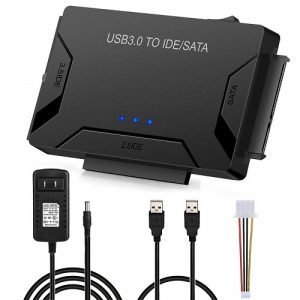
The Unitek USB 3.0 to IDE & SATA Hard Drive Adapter is a multipurpose hard drive reader that is equipped with advanced premium features that make it stand out from the rest in the market.

The adapter comes with three different connectivity ports that are compatible with 2.5 inches and 3.5 inches IDE hard drive or SATA hard disks and provide you with the transfer speed of 5 Gbps at a time.

Apart from the HDD and SSD connectivity, the adapter is also equipped to support DVD-ROM, CD-ROM, CD-RW, DVD-RW, DVD, and RW Optical Drives. It comes with a dual-head connector that is equipped with 40 pins and 44 pins along with a SATA II connector.

The 12 V 2A power cable provides the constant electrical supply required for HHD drives and comes with a built-in LED light that shows the adaptor’s activity status. With the help of the easy one and off switch, you can protect your drives at all times.

3. StarTech USB 3.1 to 2.5″ SATA Hard Drive Adapter

2.5" SATA Hard Drive Adapter
Brand StarTech
Compatible Devices Laptop, Desktop, Computer
Cable Type USB
Data Transfer Rate 6 Gb/Sec
Ports SATA to USB 3.1 converter cable
The StarTech.com USB 3.1 to 2.5″ SATA Hard Drive Adapter is a compact and portable cable that allows easy access to your external HDD and SSD drives at all times without the need for any heavy equipment or swapping mechanism.

The cable comes with a 3.1 USB port that connects to every USB-enabled device and a 2.5 inch SATA port that connects directly to your external drives.

The cable is designed to be compatible with SATA I, II, and III and deliver the transfer speed of 10 Gbps and UASP. The good thing is that it is highly compact, thus can easily fit inside the laptop bag without much of a hassle.

Also, it comes with a 2-year warranty and free lifetime technical support offered by Star Tech itself, which makes a durable and worthwhile investment. 

4. Sabrent USB 3.0 to SATA Docking Station

USB 3.0 to SATA External Hard Drive
Brand SABRENT
Supported Devices 2.5 and 3.5-inch SATA drives
Hard Drive Interface USB 3.0
Data Transfer Rate 6 Gb/Sec
Ports SuperSpeed USB 3.0
The Sabrent USB 3.0 to SATA is a docking system that looks much like a storage box and allows you to dock your external HDD and SSD drives to connect them to your laptop or computer using a fast 3.0 USB port. It enhances the transfer speed and enhances the reliability and performance of the docking system.

The docking system is built to be compatible with 2.5, and 3.5 inch hard drives, both HDD and SSD SATA drives, and delivers up to 10 times faster speed. The UASP mechanism further enhances the speed of the connecting device (laptop) and is equipped with the UASP system. Overall, you get to enjoy serial ATA buses up to 6Gbps for backups and prompt performance.

To enhance the docking station’s functionality and provide you with a better performance, which is fast and reliable and easy and compatible, the station comes with a free download of Acronis True Image for Sabrent software for easy cloning. So get yours now and start enjoying external storage space with your computer systems.

5. WEme USB 3.0 to SATA Converter Adapter

Best USB Hard Drive Reader
Brand WEme
Compatible Devices Computer
Hard Drive Interface USB
Data Transfer Rate 500 Mb/Sec
Ports SuperSpeed USB 3.0
The same USB 3.0 to SATA Converter Adapter is a versatile and easy-to-use laptop hard drive reader that is compatible with all the internal and external devices to deliver you high-speed transfer and reading and writing functionality. The adapter comes with a SATA 22 pin cable, which can support up to 5 Gbps at a time for optimum performance.

The adapter is designed to be suitable for 2.5″ and 3.5″ SATA I, II, and III SSD and HDD drives. But other than that, it is also compatible with BLU-RAY DVD, ATA CD-ROM, ATAPI DVD-ROM, CD-RW, DVD-RW, DVD, and RW Combo devices. You can use the adapter to access hard drives with 1 TB to 16 TB storage space with ease using the 3.0 and 2.0 USB ports on any device.

The good thing is that you don’t need to install any drivers to access different storage devices. Simply connect them to the adapter and enjoy easy swap performance without the need for any extra hassle. So get yours now to access the data of your previous disks or add additional disks to your system.

6. UGREEN SATA to USB 3.0 Adapter Cable

Hard Drive Disk Converter And Reader
Brand UGREEN
Compatible Devices Computer
Hard Drive Interface USB
Data Transfer Rate 5 Gb/Sec
Ports SuperSpeed USB 3.0
The UGREEN SATA to USB 3.0 Adapter Cable is one of the most technologically advanced drive readers which is equipped to help you enhance your storage space, backup files, or retrieve and recover data from your previous hard drives.

The adapter cable is a complete lifesaver when it comes to recovering files and data from a broken PC or laptop. With the simple plug and play technology, you don’t need to download or install any drivers or software to run the external devices on your system.

The cable is compatible with 2.5 and 3.5 inch SATA SSD and HDD disks and comes with the transfer speed of 5 Gbps with the additional help from the UASP technology, but only if the PC itself comes with the UASP system as well. It helps you transfer data 70% faster than any USB 3.0 port.

Not only that, but it also reduces the processor resources up to 80%, which enables you to utilize the full potential of your SATA III SSD/HDD when paired with a UASP-enabled host controller.

The package also comes with a 12 V 2A power adapter, which provides the required electrical power supply that 3.5-inch SDD and HDD disks need to run it more effectively. The good thing is that the cable is compatible with devices with up to 12 TB storage space and almost all operating systems. 

7. SUBLIME USB to SATA IDE HDD Adapter

Converter with UL Power Supply
Brand SABRENT
Compatible Devices DVD Player
Specification Met Ce, Ul
Data Transfer Rate 6 Gb/Sec
Ports SuperSpeed USB 3.0
The SUBLIME USB to SATA IDE HDD Adapter is a highly advanced, flexible, and versatile adapter that allows you to connect multiple external drives and other devices to your system with ease and fast connection.

The 40pin and 44pin ports connect 2.5″ and 3.5″ IDE & SATA hard drives to your computer via USB port to provide easy access for backups, duplication, and data transfer.

With the 3.0 port, you can expect it to deliver a high-speed transfer rate of up to 5Gbps for easy processing. Also, the 12V DC power adapter comes with an on and off switch, which protects HHD against sudden power issues to keep your data secured at all times.


Features To Consider When Buying a Hard Drive Reader

When buying a hard drive reader, there are various features that one needs to consider to ensure that he is investing in the right device. Although laptop hard drive readers are not as expensive as one might think, the price is not the reason behind a careful and suitable choice.

It is actually the performance and the protection of your external hard drive that matters when it comes to connecting it to your system using a reader. So here is the list of features that one should consider before making the final decision.

1. Type

First things first, you need to understand that hard drive readers come in different types. Although each type is designed to provide the same connectivity, its overall design enhances factors such as reliability, speed, ease of use, and performance.

  • Adapter Cable – These are compact devices that come in the form of a cable with a USB port on one end and an HDD and SSD connecting port on the other. They are easy to use and store and work well for individuals who are on the go.
  • Docking System – These devices are designed to work like phone holders. They allow you to dock multiple hard drives simultaneously and enjoy a faster and more reliable transfer speed. Plus, they are compatible with several other devices as well.
  • Enclosure Device – These devices are much like an enclosed box that holds the drives securely in place, preventing any damage. They work similarly to the docking system but offer more safety in terms of physical damage.

2. Size and Compatibility

The next thing you need to consider is the size of the hard drives that the reader is compatible with. Hard drives come in different sizes, but the most commons out of all are 2.5 and 3.5 inches. If your drive is another size, make sure to get a reader compatible with the drive before investing in one. Check for the size of the SATA port, and you will get your answer.

3. Connecting End

Next, you need to consider how the reader connects to the laptop/ PC. In the past, they used to come with HDMI ports but not anymore. We suggest that you with the one that comes with either 3.0 or 2.0 USB ports, and they are faster and much more reliable when it comes to transferring data.


SSD VS HDD reader – What is the Difference?

As the rest of the computer hardware has evolved over the years, hard drives have also taken a new turn and today come in two different types. You can get SSD or HDD drives for laptops these days. The difference between the two is that SSD is known to be faster as compared to HDD; therefore, it is preferred by users who like to enjoy prompt responses.

The speed of the drive is affected by its mechanism. A hard disk drive stores the information on a rotating platter/disk, which spins to read and write the data.

Therefore the HDD reader comes with a specific mechanism that sits right on top of the spinning platter and read and writes as the disk spins. It works similarly to an old record player.

Solid State Drives, on the other hand, do not possess such rotating platters. They are highly advanced, which is why all the data is stored on the small microchips embedded in the drive. It works similarly to your USB device, which makes it easy for SSD readers to read and write.


Frequently Asked Questions

How to use a hard drive reader?

Using a hard drive is much easier than you think. Firstly, you need to connect your external drives to the SATA ports on the adapter, cable, or docking station. Once done, use the USB end to connect it to your laptop and lastly plug in the power cable to provide power to your drive and have it run like it is a part of your laptop.

What does a hard drive reader do?

How to connect a hard drive reader to a phone?

Connecting a hard drive reader to your phone is similar to connecting it to your laptop. The only additional thing that you need is the OTG cable that plugs in the USB 3.0 port of the reader in one end and connects to your Samsung power supply on the other end to develop a connection. Once it is connected, you use the file explorer to access the data on the drive.

What are the best hard drives readers?

There are multiple hard drives readers in the market, but that doesn’t mean all of them are equipped to handle the job. Out of all, the Sabrent hard drive adapters and docking systems are the best ones in the market as they are packed with immense features that enhance the speed, performance, and compatibility of the readers.

How to fix a hard drive reader arm?

The hard drive reader arm can be damaged in different ways. It is responsible for moving the platter and transferring the magnetic field into an electrical current and vice versa for the transfer of data.

There is either dust or reside on to the arm that needs to be cleaned in most cases. But if the arm and the disk touch at any point, it could be because of a broken component. For that, you will need a professional to help you out, so you don’t end up damaging the entire reader.

Final Words

You needed to install the drive in the system and remove the existing one to access it back in the day. But not anymore! With the help of the different types of External hard drive readers, you can access data from any internal hard drive and use it externally for a much more comfortable and easy experience.

So choose the best external hard drive reader that suits your needs and invest in it right away to enjoy unlimited access to multiple internal hard drives.