Showing posts with label Programming Tutorial. Show all posts

Wednesday, December 1, 2021

Basic Programming in Python 3

Whitespace - Indentation

At this point, you may be wondering how Python knows which statements get grouped for if the statements while loops and function definitions and languages like C++ C and Java they use braces Python does not have any syntax for braces in MATLAB, you have the end a statement that indicates the end of a block of code in Python all of this is determined by indentation let's take a look at a couple of examples let's say X is some value in this case we see that the indentation puts the print high a statement within the code block so executing this code no matter what the value of x is will always print hello but only if X is true we'll high get printed so let's look at a slightly more the complicated example we again have a print high and then we have print hello and then aligned with this we have a print high again, in this case, these two are not aligned properly so this is maybe two spaces and this is one space here and this will cause an error in Python everything has to be aligned within a given code block now this syntax is okay and we get the same type of indentation for code blocks with functions and while loops everything is just denoted by indentation.

Read, Evaluate, Print, Loop

Hello everyone, in this article we will look at the Repple in Python. so, what is ripple stand for ripple is basically read evaluate print and then go back again to read so what does it mean it means that the shell environment in Python is an interactive environment and whatever we type into Python and when we hit enter it reads that then it evaluates whatever we have said that needs to be done and then it prints back the results to us and then it loops back to the read mode where it waits for us to give more input to Python so that it can again evaluate and print so it goes in this roundabout fashion where it reads evaluates prints and then again goes back to read so you can also go ahead and read this on Wikipedia I will leave a note for this in the in the video notes so I'll leave the hyperlink for this and if you want you can further read this let's just go and play of it with Python to understand what ripple is so let's type Python so this repple have started so this is the first print where it tells us the version and what what version of python we are using so for example if we type 5 plus 3 and hit enter python reads that evaluates it and then prints the feedback sorry prints the result said to us and then loops back to the read mode again so if i type 5 in to say 6 it has again read it evaluated at printed and looped back to the read state we can also assign variables like y is equal to 8 and that stays in the memory it has read it and then we can say why into five where it will evenly evaluate the result of fine to five and print it back to us like 40 we can also use underscore underscore basically helps his point to the last variable assignment and I can say into five it will give us four oh so 40 was the last result set and I have be used it and if I do again in to underscore into five it becomes a thousand set underscore basically refers to the last results that we've had or the last print and we can reuse that something which is an anomaly here is for example the print statement because there is nothing to evaluate if I say hello world and hit enter it just prints so in this case it reads there is nothing to evaluate but it prints and then it loops back to the read now he will just quit Python here and move back to our command prompt so I'm in Windows I will just type control Z and then hit enter and it brings me back to my Windows prompt so in this video we learned about the repel or how Python works interactively in a shell environment I hope you find this video useful and thanks for watching this video please do subscribe to my channel if you enjoy what I am doing Thanks.

Hands-on - Practice Question PYTHON 3

1. Print

Greeting Quote

Mr Greet is the name of the digital notice board placed at the entrance of the seminar hall. Its purpose is to welcome each and every participant of the seminar by showing a welcoming quote with their name on it.

It is based on the function ‘Greet’ which takes a single parameter ‘Name’ as a String are the names of the participants as Input One by one.

Write the function definition for ‘Greet’ which will generate the welcoming quote as below :

For Example, the ‘Name’ is “Ramakrishnan” then the welcoming quote will be :

Output:

Welcome, Ramakrishnan.

It is our pleasure to invite you.

Have a wonderful day.


Note:

Name’ must be of String Datatype.


Input Format for Custom Testing:

It’s a single line containing a name.

Sample Test Case 1:


Sample Input

STDIN      Function
-----      --------
Karthik → Name

Sample Output

Welcome Karthik.
It is our pleasure inviting you.

Have a wonderful day.

Thursday, November 25, 2021

Installing Python 3 in Windows and Linux by www.BlueTEXT.in

Introduction

Python is a widely used high-level programming language first launched in 1991. Since then, Python has been gaining popularity and is considered one of the most popular and flexible server-side programming languages.

Unlike most Linux distributions, Windows does not come with the Python programming language by default. However, you can install Python on your Windows server or local machine in just a few easy steps.

Prerequisites

  • A system running Windows 10 with admin privileges

  • Command Prompt (comes with Windows by default)

  • A Remote Desktop Connection app (use if you are installing Python on a remote Windows server)

Python 3 Installation on Windows

Step 1: Select Version of Python to Install

The installation procedure involves downloading the official Python .exe installer and running it on your system.

The version you need depends on what you want to do in Python. For example, if you are working on a project coded in Python version 2.6, you probably need that version. If you are starting a project from scratch, you have the freedom to choose.

If you are learning to code in Python, we recommend you download both the latest version of Python 2 and 3. Working with Python 2 enables you to work on older projects or test new projects for backward compatibility.

Note: If you are installing Python on a remote Windows server, log in via Remote Desktop Protocol (RDP). Once you log in, the installation procedure is the same as for a local Windows machine.

Step 2: Download Python Executable Installer

  1. Open your web browser and navigate to the Downloads for Windows section of the official Python website.

  2. Search for your desired version of Python. At the time of publishing this article, the latest Python 3 release is version 3.7.3, while the latest Python 2 release is version 2.7.16.

  3. Select a link to download either the Windows x86-64 executable installer or Windows x86 executable installer. The download is approximately 25MB.

Note: If your Windows installation is a 32-bit system, you need the Windows x86 executable installer. If your Windows is a 64-bit version, you need to download the Windows x86-64 executable installer. There is nothing to worry about if you install the “wrong” version. You can uninstall one version of Python and install another.

Step 3: Run Executable Installer

1. Run the Python Installer once downloaded. (In this example, we have downloaded Python 3.7.3.)

2. Make sure you select the Install launcher for all users and Add Python 3.7 to PATH checkboxes. The latter places the interpreter in the execution path. For older versions of Python that do not support the Add Python to Path checkbox, see Step 6.

3. Select Install Now – the recommended installation options.

For all recent versions of Python, the recommended installation options include Pip and IDLE. Older versions might not include such additional features.

4. The next dialogue will prompt you to select whether to Disable the path length limit. Choosing this option will allow Python to bypass the 260-character MAX_PATH limit. Effectively, it will enable Python to use long path names.

The Disable path length limit option will not affect any other system settings. Turning it on will resolve potential name length issues that may arise with Python projects developed in Linux.

Step 4: Verify Python Was Installed On Windows  

  1. Navigate to the directory in which Python was installed on the system. In our case, it is C:\Users\Username\AppData\Local\Programs\Python\Python37 since we have installed the latest version.

  2. Double-click python.exe.

  3. The output should be similar to what you can see below:

Note: You can also check whether the installation was successful by typing python –V in Command Prompt. The output should display your installed version of Python. In our case, it is “Python 3.7.3.”

Step 5: Verify Pip Was Installed

If you opted to install an older version of Python, it is possible that it did not come with Pip preinstalled. Pip is a powerful package management system for Python software packages. Thus, make sure that you have it installed.

We recommend using Pip for most Python packages, especially when working in virtual environments.

To verify whether Pip was installed:

  1. Open the Start menu and type "cmd."

  2. Select the Command Prompt application.

  3. Enter pip -V in the console. If Pip was installed successfully, you should see the following output:

Pip has not been installed yet if you get the following output:

'pip' is not recognized as an internal or external command,

Operable program or batch file.

If your version of Python is missing Pip, see our article How to Install Pip to Manage Python Packages on Windows.

Step 6: Add Python Path to Environment Variables (Optional)

We recommend you go through this step if your version of the Python installer does not include the Add Python to PATH checkbox or if you have not selected that option.

Setting up the Python path to system variables alleviates the need for using full paths. It instructs Windows to look through all the PATH folders for “python” and find the install folder that contains the python.exe file.

1. Open the Start menu and start the Run app.

run dialog box

2. Type sysdm.cpl and click OK. This opens the System Properties window.

3. Navigate to the Advanced tab and select Environment Variables.

4. Under System Variables, find and select the Path variable.

5. Click Edit.

6. Select the Variable value field. Add the path to the python.exe file preceded with a semicolon (;). For example, in the image below, we have added ";C:\Python34."

How to add the Variable Value durring python3 windows installation.

7. Click OK and close all windows.

By setting this up, you can execute Python scripts like this: Python script.py

Instead of this: C:/Python34/Python script.py

As you can see, it is cleaner and more manageable.

Step 7: Install virtualnv (Optional)

You have Python, and you have Pip to manage packages. Now, you need one last software package - virtualnv. Virtualnv enables you to create isolated local virtual environments for your Python projects.

Why use virtualnv?

Python software packages are installed system-wide by default. Consequently, whenever a single project-specific package is changed, it changes for all your Python projects. You would want to avoid this, and having separate virtual environments for each project is the easiest solution.

To install virtualnv:

1. Open the Start menu and type "cmd."

2. Select the Command Prompt application.

3. Type the following pip command in the console:

C:\Users\Username> pip install virtualenv

Upon completion, virtualnv is installed on your system.

Installing Python 3 on Linux

https://d33wubrfki0l68.cloudfront.net/02962eb19c0069740d16e67b5ba7c613238c8b9a/30ed2/_images/34435689480_2e6f358510_k_d.jpg

This document describes how to install Python 3.6 or 3.8 on Ubuntu Linux machines.

To see which version of Python 3 you have installed, open a command prompt and run

$ python3 --version

If you are using Ubuntu 16.10 or newer, then you can easily install Python 3.6 with the following commands:

$ sudo apt-get update
$ sudo apt-get install python3.6

If you’re using another version of Ubuntu (e.g. the latest LTS release) or you want to use a more current Python, we recommend using the deadsnakes PPA to install Python 3.8:

$ sudo apt-get install software-properties-common
$ sudo add-apt-repository ppa:deadsnakes/ppa
$ sudo apt-get update
$ sudo apt-get install python3.8

If you are using other Linux distribution, chances are you already have Python 3 pre-installed as well. If not, use your distribution’s package manager. For example on Fedora, you would use dnf:

$ sudo dnf install python3

Note that if the version of the python3 package is not recent enough for you, there may be ways of installing more recent versions as well, depending on you distribution. For example installing the python3.9 package on Fedora 32 to get Python 3.9. If you are a Fedora user, you might want to read about multiple Python versions available in Fedora.

Working with Python 3

At this point, you may have the system Python 2.7 available as well.

$ python

This might launch the Python 2 interpreter.

$ python3

This will always launch the Python 3 interpreter.

Setuptools & Pip

The two most crucial third-party Python packages are setup tools and pip.

Once installed, you can download, install and uninstall any compliant Python software product with a single command. It also enables you to add this network installation capability to your own Python software with very little work.

Python 2.7.9 and later (on the python2 series), and Python 3.4 and later include pip by default.

To see if pip is installed, open a command prompt and run

$ command -v pip

To install pip, follow the official pip installation guide - this will automatically install the latest version of setup tools.

Note that on some Linux distributions including Ubuntu and Fedora the pip command is meant for Python 2, while the pip3 command is meant for Python 3.

$ command -v pip3

However, when using virtual environments (described below), you don’t need to care about that.

Pipenv & Virtual Environments

The next step is to install Pipenv, so you can install dependencies and manage virtual environments.

A Virtual Environment is a tool to keep the dependencies required by different projects in separate places, by creating virtual Python environments for them. It solves the “Project X depends on version 1.x but, Project Y needs 4.x” dilemma, and keeps your global site-packages directory clean and manageable.

For example, you can work on a project which requires Django 1.10 while also maintaining a project which requires Django 1.8.

So, onward! To the Pipenv & Virtual Environments docs!

Introduction to Python in simple Terms by www.BlueTEXT.in

Python is a general-purpose interpreted, interactive, object-oriented, and high-level programming language. This course is designed for software programmers who need to learn the Python programming language from scratch.

Introduction to Python

Python is a high-level, interpreted, interactive and object-oriented scripting language that finds its application in many areas like -
  • Web scripting.
  • 3d Modelling (Blender).
  • Desktop Applications -` Games (Pygame).
  • Scientific usage (SciPy/NumPy).
Python source code is available under the GNU General Public License (GPL). There are two major Python versions, Python 2 and Python 3.

Python features

  • Open Source and Simple to use.
  • Very powerful and Ubiquitous.
  • Supports broad standard library.
  • Supports interactive testing and debugging.
  • Established interface with all major DB's.
  • Runs on a variety of hardware platforms.
Technical features of Python

  • Object-oriented (supports both functional and structured programming)
  • Dynamically and strongly typed
  • Whitespace delimited (Indentation)
  • Scripting language which supports large applications.
  • High-level dynamic data types and supports dynamic type checking
  • Automatic garbage collection
  • Interpreted makes compiler interact with a developer.
  • Easy integration with CC++COMActiveXCORBA and Java.

Python Implementations

CPython - Python implementation on standard C language.
Jython - Python implementation with Java virtual machine to blend with Java.
Pypy - Python implemented in Python and its Just-in-time compiler making it fastest.
Iron Python - for windows, which implements common runtime libraries to interface with. NET.

Difference between Python2 & Python3


Comparison Parameter Python 2 Python 3
Year of Release Python 2 was released in the year 2000. Python 3 was released in the year 2008.
“Print” Keyword In Python 2, print is considered to be a statement and not a function. In Python 3, print is considered to be a function and not a statement.
Storage of Strings In Python 2, strings are stored as ASCII by default. In Python 3, strings are stored as UNICODE by default.
Division of Integers On the division of two integers, we get an integral value in Python 2. For instance, 7/2 yields 3 in Python 2. On the division of two integers, we get a floating-point value in Python 3. For instance, 7/2 yields 3.5 in Python 3.
Exceptions In Python 2, exceptions are enclosed in notations. In Python 3, exceptions are enclosed in parentheses.
Variable leakage The values of global variables do change in Python 2 if they are used inside a for-loop. The value of variables never changes in Python 3.
Iteration In Python 2, the xrange() function has been defined for iterations. In Python 3, the new Range() function was introduced to perform iterations.
Ease of Syntax Python 2 has more complicated syntax than Python 3. Python 3 has an easier syntax compared to Python 2.
Libraries A lot of libraries of Python 2 are not forward compatible. A lot of libraries are created in Python 3 to be strictly used with Python 3.
Usage in today’s times Python 2 is no longer in use since 2020. Python 3 is more popular than Python 2 and is still in use in today’s times.
Backward compatibility Python 2 codes can be ported to Python 3 with a lot of effort. Python 3 is not backwards compatible with Python 2.
Application Python 2 was mostly used to become a DevOps Engineer. It is no longer in use after 2020. Python 3 is used in a lot of fields like Software Engineering, Data Science, etc.


Print:

  • Python 2 treats “print” as a statement rather than a function.
  • Python 3 explicitly treats “print” as a function.

Integer Division:

  • Python 2 treats numbers without any digits. (Output of expression 3 / 2 is 1, not 1.5). To get the result 1.5, you would have to write 3.0 / 2.0.
  • Python 3 evaluates 3 / 2 as 1.5 by default, which is more intuitive for new programmers.

List Comprehension Loop Variables: Common name for the variables that are iterated over in a list comprehension as a global variable get interchanged. This is fixed in Python 3.

Unicode Strings: By default Python 3 stores strings as Unicode unlike Python 2.

Raising Exceptions: Python 3 requires a different syntax for raising exceptions.

  • Python 2:raise IOError, “some error message”
  • Python3: raise IOError(“some error message”)

Tuesday, August 31, 2021

How to Creating a Virtual Private Cloud in AWS - Architecting on AWS Part 3 (2021)

Traditional networking is difficult—it involves equipment, cabling, complex configurations, and specialist skills. Fortunately, Amazon Virtual Private Cloud (Amazon VPC) hides the complexity while making it easy to deploy secure private networks.


This lab shows you how to build your own VPC, create subnets, and direct traffic between VPC components. The following image shows the final architecture:


An optional Challenge task is available. In the challenging task, you create a VPC peering connection to a shared services VPC. Then, you use an application and database to test connectivity between the VPCs.


Objectives


After completing this lab, you will be able to:


  • Create a VPC

  • Create public and private subnets

  • Create an internet gateway

  • Configure a routeing table and associate it to a subnet


Article Process Duration


This Article Procedure requires approximately 30 minutes to complete.

Common Login Errors
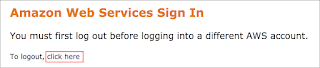
Error: You must first log out


If you see the message, You must first log out before logging into a different AWS account:

Task 1: Creating a VPC

In this task, you create a new VPC in the AWS Cloud.


A VPC is a virtual network dedicated to your AWS account. A VPC is logically isolated from other virtual networks in the AWS Cloud. You can launch AWS resources, such as Amazon Elastic Compute Cloud (Amazon EC2) instances, into the VPC. You can modify the VPC's IP address range; create subnets; and configure route tables, network gateways, and security settings.


  1. In the AWS Management Console, on the Services menu, click VPC.

  2. If you see New VPC Experience at the top-left of your screen, ensure  New VPC Experience is selected. This lab is designed to use the new VPC Console.


The VPC management console offers a VPC Wizard, which can automatically create several VPC architectures. However, in this lab, you will create the VPC components manually.


  1. In the left navigation pane, click Your VPCs.


A list of your VPCs displays. A default VPC is provided so that you can launch resources as soon as you start using AWS. There is also a Shared VPC, which you will use later in the lab. However, you will now create your own VPC.


The VPC will have a CIDR range of 10.0.0.0/16, which includes all IP addresses that start with 10.0.x.x. This range contains over 65,000 addresses. You will later divide the addresses into separate subnets.


  1. Click Create VPC and configure:

  • Name tag: Lab VPC 

  • IPv4 CIDR block: 10.0.0.0/16 

  1. Click Create VPC


 Note If these options do not appear, cancel and ensure you clicked Your VPCs in the left navigation pane. Then, click Create VPC again.

  1. In the lower half of the page, click the Tags tab.


Tags are useful for identifying resources. For example, a tag can be used to identify dev/test/production environments or cost centers.

  1. Above the list of VPCs, click Actions and select Edit DNS hostnames.

This option assigns a friendly DNS name to Amazon EC2 instances in the VPC, such as the following:

ec2-52-42-133-255.us-west-2.compute.amazonaws.com


  1. Select  Enable.

  2. Click Save changes


Any Amazon EC2 instances launched into the VPC will now automatically receive a DNS hostname. You can also add a more meaningful DNS name (for example, app.company.com) later by using Amazon Route 53.

Task 2: Creating subnets

A subnet is a sub-range of IP addresses within the VPC. You can launch AWS resources into a specified subnet. Use a public subnet for resources that must be connected to the internet, and use a private subnet for resources that are to remain isolated from the internet.


In this task, you will create a public subnet and a private subnet in the Lab VPC, as shown in the following image:


Create a public subnet

The public subnet will be for internet-facing resources.


  1. In the left navigation pane, click Subnets.

  2. Click Create subnet and configure:

  • VPC: Lab VPC

  • Subnet name: Public Subnet

  • Availability Zone: Select the first Availability Zone in the list (Do choose No Preference.)

  • IPv4 CIDR block:

  1. Click Create subnet


 Note The VPC has a CIDR range of 10.0.0.0/16, which includes all 10.0.x.x IP addresses. The subnet you just created has a CIDR range of 10.0.0.0/24, which includes all 10.0.0.x IP addresses. These ranges may look similar, but the subnet is smaller than the VPC because of the /24 in the CIDR range.

Now, configure the subnet to automatically assign a public IP address for all instances launched within it.

  1. Select  ☑ Public Subnet.

  2. Click Actions and select Modify auto-assign IP settings.

  3. Select ☑ Enable auto-assign public IPv4 address.

  4. Click Save

 Note Even though this subnet is named Public Subnet, it is not yet public. A public subnet must have an internet gateway, which you will create and attach later in the lab.

Create a private subnet

The private subnet will be for resources that are to remain isolated from the internet.

  1. Use what you have just learned to create another subnet with the following settings:

  • VPC: Lab VPC

  • Name tag: Private Subnet

  • Availability Zone: Select the first Availability Zone in the list (Do choose No Preference.)

  • IPv4 CIDR block: 10.0.2.0/23

 ☑ Note The CIDR block of 10.0.2.0/23 includes all IP addresses that start with 10.0.2.x and 10.0.3.x. This is twice as large as the public subnet because most resources should be kept private unless they specifically need to be accessible from the internet.

Your VPC now has two subnets. However, it is totally isolated and cannot communicate with resources outside the VPC. You will next configure the public subnet to connect to the internet via an internet gateway.

Task 3: Creating an internet gateway

An internet gateway is a horizontally scaled, redundant, and highly available VPC component that allows communication between instances in a VPC and the internet. An internet gateway does not impose availability risks or bandwidth constraints on network traffic.

An internet gateway serves two purposes:

  • To provide a target in route tables to connect to the internet

  • To perform network address translation (NAT) for instances that have been assigned public IPv4 addresses

In this task, you will create an internet gateway so that internet traffic can access the public subnet.

  1. In the left navigation pane, click Internet Gateways.

  2. Click Create internet gateway and configure:

  • Name tag: Lab IGW

  1. Click Create internet gateway

You can now attach the internet gateway to your Lab VPC.

  1. Click Actions and select Attach to VPC.

  2. For VPC, select Lab VPC.

  3. Click Attach internet gateway

The internet gateway is now attached to your Lab VPC. Even though you have created an internet gateway and attached it to your VPC, you must also configure the routeing table of the public subnet to use the internet gateway.

Task 4: Configuring route tables

A routeing table contains a set of rules, called routes, which are used to determine where network traffic is directed. Each subnet in a VPC must be associated with a routeing table; the table controls the routing for the subnet. A subnet can only be associated with one route table at a time, but you can associate multiple subnets with the same route table.

To use an internet gateway, a subnet's route table must contain a route that directs internet-bound traffic to the internet gateway. If a subnet is associated with a routeing table that has a route to an internet gateway, it is known as a public subnet.

In this task, you will do the following:

  • Create a public route table for internet-bound traffic

  • Add a route to the routeing table to direct internet-bound traffic to the internet gateway

  • Associate the public subnet with the new route table

  1. In the left navigation pane, click Route Tables.

Several route tables are displayed, but there is only one route table associated with Lab VPC. This route table routes traffic locally, so it is called a private route table.

  1. Select the routeing table that shows Lab VPC in the VPC ID column. (You can expand the column to see the names.)

  2. Hover in the Name column and click the pencil  ✏ icon.

  3. Enter the name of Private Route Table and then click the checkmark  ✔ icon.

  4. In the lower half of the page, click the Routes tab.


There is only one route. It shows that all traffic destined for 10.0.0.0/16 (which is the range of the Lab VPC) will be routed locally. This allows all subnets within a VPC to communicate with each other.

Now, create a new public route table to send public traffic to the internet gateway.


  1. Click Create route table and configure:

  • Name tag: Public Route Table

  • VPC: Lab VPC

  1. Click Create and then click Close

  2. Select  ☑ Public Route Table, ensuring that it is the only route table selected.

  3. On the Routes tab, click Edit routes

Now, add a route to direct Internet-bound traffic (0.0.0.0/0) to the internet gateway.

  1. Click Add a route and configure:

  • Destination:

  • Target: Select Internet Gateway and then Lab IGW

  1. Click Save routes and then click Close

The last step is to associate this new route table with the public subnet.

  1. Click the Subnet Associations tab.

  2. Click Edit subnet associations

  3. Select the row with Public Subnet.

  4. Click Save

The Public Subnet is now public because it has a route table entry that sends traffic to the internet via the internet gateway.

To summarize, you can create a public subnet as follows:

  • Create an internet gateway

  • Create a routeing table

  • Add a route to the routeing table that directs 0.0.0.0/0 traffic to the internet gateway

  • Associate the routeing table with a subnet, which therefore becomes a public subnet

Task 5: Creating a security group for the App Server

A security group acts as a virtual firewall for instances to control inbound and outbound traffic. Security groups operate at the instance network interface level, not the subnet level. Therefore, each instance can have its own firewall that controls traffic. If you do not specify a particular security group at launch time, the instance is automatically assigned to the default security group for the VPC.

In this task, you will create a security group that allows users to access the App Server via HTTP.

  1. In the left navigation pane, click Security Groups.

  2. Click Create a security group and configure:

  • Security group name:

  • Description:

  • VPC: Lab VPC

  1. For Inbound rules, click Add rule and configure:

  • Type: HTTP

  • Source: Anywhere

  1. At the bottom of the page, click Create a security group

The inbound rules determine what traffic is permitted to reach the instance. You have configured it to permit HTTP (port 80) traffic coming from anywhere on the internet (0.0.0.0/0).

You will use this application security group in the next task.

Task 6: Launching an App Server in the public subnet

To test that your VPC is correctly configured, you will now launch an Amazon EC2 instance into the public subnet and confirm that the App Server is accessible from the internet.

  1. On the Services menu, click EC2.

  2. At the top-left of the screen, ensure that  New EC2 Experience is selected. This lab is designed to work with the New EC2 Console.

  3. Scroll down the page, click Launch instance and select Launch Instance.

  4. Configure the following:

Step 1 (Choose AMI)

  • AMI: Amazon Linux 2 AMI

Step 2 (Choose Instance Type)

  • Instance Type: t3.micro (If you are unable to launch t3.micro, try using t2.micro. This is because all instance types are not available in all regions/AZs.)

Step 3 (Configure Instance)

  • Network: Lab VPC

  • Subnet: Public Subnet

  • IAM role: Inventory-App-Role

  • Scroll down to and expand  Advanced Details. Copy and paste the following into User data:

#!/bin/bash

# Install Apache Web Server and PHP

yum install -y httpd mysql

amazon-linux-extras install -y php7.2

# Download Lab files

wget https://us-west-2-tcprod.s3.amazonaws.com/courses/ILT-TF-200-ARCHIT/v6.8.26/lab-2-webapp/scripts/inventory-app.zip

unzip inventory-app.zip -d /var/www/html/

# Download and install the AWS SDK for PHP

wget https://github.com/aws/aws-sdk-php/releases/download/3.62.3/aws.zip

unzip aws -d /var/www/html

# Turn on web server

chkconfig httpd on

service httpd start


Step 4 (Add Storage)

  • Use default settings (no changes)

Step 5 (Add Tags)

  • Click Add Tag

  • Key:

  • Value:

Step 6 (Configure Security Group)

  • Click Select an existing security group

  • Select App-SG

  • Click Review and Launch

You receive a warning that you will not be able to connect to the instance. This is acceptable because you will not be connecting to the instance. All configuration is done via the user-data script.

  • Click Continue

Step 7 (Review)

  • Click Launch

  • Select Proceed without a key pair

  • Select  I acknowledge that...

  • Click Launch Instances

A status page notifies you that your instances are launching.

  1. Click View Instances

Before continuing, wait for the instance state to display running.

 Tip To update the display, click the refresh icon occasionally.

  1. Once the instance is running, select  App Server.

  2. In the Details tab, copy the IPv4 Public IP address.

  3. Open a new web browser tab, paste the IP address into the address bar, and press ENTER.

If your VPC was configured correctly, you should see the Inventory application and the message Please configure Settings to connect to the database. No database settings have been configured yet, but the appearance of the Inventory application proves that the public subnet has been correctly configured.

 Note If the Inventory application does not appear, wait 60 seconds and refresh the browser tab to try again. It can take a couple of minutes for the EC2 instance to boot and run the script that installs software.

Challenge: Configure VPC peering

 Note This challenging task is optional and is provided in case you have lab time remaining. To skip to the end of the lab, click here.

Another VPC called Shared VPC has been provided as part of this lab. Your task is to create a peering connection between your Lab VPC and the Shared VPC, as shown in the following architecture diagram:


A VPC peering connection is a networking connection between two VPCs that enables you to route traffic between them privately. Instances in either VPC can communicate with each other as if they are within the same network. You can create a VPC peering connection between your own VPCs, with a VPC in another AWS account, or with a VPC in a different AWS Region.

A database has already been provisioned in the Shared VPC. Once you have configured VPC peering, you will connect the database to the Inventory application to confirm that the peering has been correctly configured.

Create a peering connection

  1. In the AWS Management Console, on the Services menu, click VPC.

  2. In the left navigation pane, click Peering Connections.

First, create a peering connection, which is the VPC component that links two VPCs together.

  1. Click Create Peering Connection and configure:

  • Peering connection name tag:

  • VPC (Requester): Lab VPC

  • VPC (Accepter): Shared VPC

  1. Click Create Peering Connection and then click OK

When a peering connection is created, the target VPC must accept it. This is because the target VPC might be owned by a different account, or the user creating the peering connection might not have permission to accept the connection for the target VPC. However, in this lab, you will accept the connection yourself.

  1. Select  Lab-Peer.

  2. Click Actions and select Accept Request.

  3. Click Yes, Accept and Close

Configure route tables

Now, update the route tables in both VPCs to send traffic from the Lab VPC to the peering connection, as shown in the following image:


  1. In the left navigation pane, click Route Tables.

  2. Select  Public Route Table.

You will configure the public route table that is associated with the Lab VPC to send traffic to the peering connection if the destination IP address falls within the range of the Shared VPC.

  1. On the Routes tab, click Edit routes

  2. Click Add a route and configure:

  • Destination:

  • (This is the CIDR range of the Shared VPC.)

  • Target: Select Peering Connection and then Lab-Peer

  1. Click Save routes and then click Close

Now, configure the reverse flow for traffic coming from Shared VPC and going to the Lab VPC.

  1. Select  Shared-VPC Route Table, ensuring that it is the only route table selected.

This is the routeing table for the Shared VPC. You will configure it to send traffic to the peering connection if the destination IP address falls within the range of the Lab VPC.

  1. On the Routes tab, click Edit routes

  2. Click Add a route and configure:

  • Destination:

  • (The is the CIDR range of the Lab VPC.)

  • Target: Select Peering Connection and then Lab-Peer

  • Click Save routes and then click Close

The route tables have now been configured to send traffic via the peering connection when the traffic is destined for the other VPC.

Test the peering connection

A database has already been provisioned in the Shared VPC. You will now test the peering connection by configuring the Inventory application to access that database across the peering connection.

  1. Return to the web browser tab with the Inventory application.

  2. Click  Settings and configure:

  • Endpoint: Paste the Endpoint value shown to the left of the instructions you are currently reading

  • Database:

  • Username:

  • Password:

  1. Click Save

The application should now show data from the database.

This proves that the peering connection is working because the Shared VPC does not have an internet gateway. The only way to access the database is via the peering connection.

Conclusion

Congratulations! You now have successfully:

  • Created a VPC

  • Created public and private subnets

  • Created an internet gateway

  • Configured a routeing table and associated it to a subnet

End of Article Please Submit your Review.

1 star = Very dissatisfied
2 stars = Dissatisfied
3 stars = Neutral
4 stars = Satisfied
5 stars = Very satisfied

Your feedback is welcome and appreciated.
If you would like to share any feedback, suggestions, or corrections, please provide the details in our

YouTube Channel: https://youtube.com/c/CodeOn