Wednesday, August 19, 2020

Making a Kali Bootable USB Drive in Windows , Mac and Linux 2021
Making a Kali Bootable USB Drive in Windows , Mac and Linux 2021


Our favourite way, and the fastest method, for getting up and running with Kali Linux is to run it “live” from a USB drive. This method has several advantages:

  • It’s non-destructive — it makes no changes to the host system’s hard drive or installed OS, and to go back to normal operations, you simply remove the “Kali Live” USB drive and restart the system.
  • It’s portable — you can carry Kali Linux in your pocket and have it running in minutes on an available system
  • It’s customizable — you can roll your own custom Kali Linux ISO image and put it onto a USB drive using the same procedures
  • It’s potentially persistent — with a bit of extra effort, you can configure your Kali Linux “live” USB drive to have persistent storage, so the data you collect is saved across reboots

In order to do this, we first need to create a bootable USB drive which has been set up from an ISO image of Kali Linux.

Windows

What You’ll Need for Windows 

  1. verified copy of the appropriate ISO image of the latest Kali build image for the system you’ll be running it on: see the details on downloading official Kali Linux images.

  2. If you’re running under Windows, there is not one tool that is considered the overall best for imaging. We recommend Etcher, however Rufus  https://rufus.ie/

  3. is another popular option. If one does not work for you, consider the other.

  4. A USB thumb drive, 4GB or larger. (Systems with a direct SD card slot can use an SD card with similar capacity. The procedure is identical.)

Kali Linux Live USB Install Procedure

The specifics of this procedure will vary depending on whether you’re doing it on a WindowsLinux, or macOS/OS X system.

Creating a Bootable Kali USB Drive on Windows (Etcher)

  1. Plug your USB drive into an available USB port on your Windows PC, note which drive designator (e.g. “F:\“) it uses once it mounts, and launch Etcher.

  2. Choose the Kali Linux ISO file to be imaged with “select image” and verify that the USB drive to be overwritten is the correct one. Click the “Flash!” button once ready.

3. Once Etcher alerts you that the image has been flashed, you can safely remove the USB drive and proceed to boot into Kali with it.


macOS/OS X 


What You’ll Need

  1. verified copy of the appropriate ISO image of the latest Kali build image for the system you’ll be running it on: see the details on downloading official Kali Linux images.

  2. If you’re running under macOS/OS X, you can use the dd command, which is pre-installed on those platforms, or use Etcher.

  3. A USB thumb drive, 4GB or larger. (Systems with a direct SD card slot can use an SD card with similar capacity. The procedure is identical.)

Kali Linux Live USB Install Procedure

The specifics of this procedure will vary depending on whether you’re doing it on a WindowsLinux, or macOS/OS X system.

Creating a Bootable Kali USB Drive on macOS/OS X (DD)

macOS/OS X is based on UNIX, so creating a bootable Kali Linux USB drive in an macOS/OS X environment is similar to doing it on Linux. Once you’ve downloaded and verified your chosen Kali ISO file, you use dd to copy it over to your USB stick. If you would prefer to use Etcher, then follow the same directions as a Windows user. Note that the USB drive will have a path similar to /dev/disk2.

WARNING: Although the process of imaging Kali on a USB drive is very easy, you can just as easily overwrite a disk drive you didn't intend to with dd if you do not understand what you are doing, or if you specify an incorrect output path. Double-check what you're doing before you do it, it'll be too late afterwards. Consider yourself warned.

  1. Without the USB drive plugged into the system, open a Terminal window, and type the command diskutil list at the command prompt.

  2. You will get a list of the device paths (looking like /dev/disk0/dev/disk1, etc.) of the disks mounted on your system, along with information on the partitions on each of the disks.

3. Plug in your USB device to your Apple computer’s USB port and run the command diskutil list a second time. Your USB drive’s path will most likely be the last one. In any case, it will be one which wasn’t present before. In this example, you can see that there is now a /dev/disk6 which wasn’t previously present.

4. Unmount the drive (assuming, for this example, the USB stick is /dev/disk6 — do not simply copy this, verify the correct path on your own system!):

% diskutil unmountDisk /dev/disk6
  1. Proceed to (carefully!) image the Kali ISO file on the USB device. The following command assumes that your USB drive is on the path /dev/disk6, and you’re in the same directory with your Kali Linux ISO, which is named “kali-linux-2020.2-live-amd64.iso”. We will replace /dev/disk6 with /dev/rdisk6 to improve the write speeds:

    % sudo dd if=kali-linux-2020.2-live-amd64.iso of=/dev/rdisk6 bs=4m

Increasing the blocksize (bs) will speed up the write progress, but will also increase the chances of creating a bad USB stick. Using the given value on macOS/OS X has produced reliable images consistently.

Imaging the USB drive can take a good amount of time, over half an hour is not unusual, as the sample output below shows. Be patient!

The dd command provides no feedback until it’s completed, but if your drive has an access indicator, you’ll probably see it flickering from time to time. The time to dd the image across will depend on the speed of the system used, USB drive itself, and USB port it’s inserted into. Once dd has finished imaging the drive, it will output something that looks like this:

2911+1 records in
2911+1 records out
3053371392 bytes transferred in 2151.132182 secs (1419425 bytes/sec)

And that’s it!


Creating a Bootable Kali USB Drive on macOS/OS X (Etcher)

Alternatively, Etcher can be used.

  1. Download and run Etcher.

  2. Choose the Kali Linux ISO file to be imaged with “select image” and verify that the USB drive to be overwritten is the correct one. Click the “Flash!” button once ready.

3. Once Etcher alerts you that the image has been flashed, you can safely remove the USB drive.

You can now boot into a Kali Live / Installer environment using the USB device.

To boot from an alternate drive on an macOS/OS X system, bring up the boot menu by pressing the Option key immediately after powering on the device and select the drive you want to use.

For more information, see Apple’s knowledge base.


LINUX


What You’ll Need for Linux

  1. verified copy of the appropriate ISO image of the latest Kali build image for the system you’ll be running it on: see the details on downloading official Kali Linux images.

  2. If you’re running under Linux, you can use the dd command, which is pre-installed, or use Etcher.

  3. A USB thumb drive, 4GB or larger. (Systems with a direct SD card slot can use an SD card with similar capacity. The procedure is identical.)

Kali Linux Live USB Install Procedure

The specifics of this procedure will vary depending on whether you’re doing it on a WindowsLinux, or macOS/OS X system.

Creating a Bootable Kali USB Drive on Linux (DD)

Creating a bootable Kali Linux USB key in a Linux environment is easy. Once you’ve downloaded and verified your Kali ISO file, you can use the dd command to copy it over to your USB stick using the following procedure. Note that you’ll need to be running as root, or to execute the dd command with sudo. The following example assumes a Linux Mint 17.1 desktop — depending on the distro you’re using, a few specifics may vary slightly, but the general idea should be very similar. If you would prefer to use Etcher, then follow the same directions as a Windows user. Note that the USB drive will have a path similar to /dev/sdb.

WARNING: Although the process of imaging Kali Linux onto a USB drive is very easy, you can just as easily overwrite a disk drive you didn't intend to with dd if you do not understand what you are doing, or if you specify an incorrect output path. Double-check what you're doing before you do it, it'll be too late afterwards. Consider yourself warned.

  1. First, you’ll need to identify the device path to use to write the image to your USB drive. Without the USB drive inserted into a port, execute the command sudo fdisk -l at a command prompt in a terminal window (if you don’t use elevated privileges with fdisk, you won’t get any output). You’ll get output that will look something (not exactly) like this, showing a single drive — “/dev/sda” — containing three partitions (/dev/sda1, /dev/sda2, and /dev/sda5):

2. Now, plug your USB drive into an available USB port on your system, and run the same command, “sudo fdisk -l” a second time. Now, the output will look something (again, not exactly) like this, showing an additional device which wasn’t there previously, in this example “/dev/sdb”, a 16GB USB drive:

3. Proceed to (carefully!) image the Kali ISO file on the USB device. The example command below assumes that the ISO image you’re writing is named “kali-linux-2020.2-live-amd64.iso” and is in your current working directory. The blocksize parameter can be increased, and while it may speed up the operation of the dd command, it can occasionally produce unbootable USB drives, depending on your system and a lot of different factors. The recommended value, “bs=4M”, is conservative and reliable.

dd if=kali-linux-2020.2-live-amd64.iso of=/dev/sdb bs=4M

Imaging the USB drive can take a good amount of time, over ten minutes or more is not unusual, as the sample output below shows. Be patient!

The dd command provides no feedback until it’s completed, but if your drive has an access indicator, you’ll probably see it flickering from time to time. The time to dd the image across will depend on the speed of the system used, USB drive itself, and USB port it’s inserted into. Once dd has finished imaging the drive, it will output something that looks like this:

5823+1 records in
5823+1 records out
3053371392 bytes (3.1 GB) copied, 746.211 s, 4.1 MB/s

That’s it, really!


Creating a Bootable Kali USB Drive on Linux (DD with status)

Alternatively there are a few other options available for imaging.

The first option is dd with a status indicator. This is only available on newer systems however. To do this, we simply add the status flag.

dd if=kali-linux-2020.2-live-amd64.iso of=/dev/sdb bs=4M status=progress

Another option is to use pv. We can also use the size flag here to get an approximate timer. Change the size depending on the image being used.

dd if=kali-linux-2020.2-live-amd64.iso | pv -s 2.8G | dd of=/dev/sdb bs=4M

Creating a Bootable Kali USB Drive on Linux (Etcher)

The third is Etcher.

  1. Download and run Etcher.

  2. Choose the Kali Linux ISO file to be imaged with “select image” and verify that the USB drive to be overwritten is the correct one. Click the “Flash!” button once ready.

3. Once Etcher alerts you that the image has been flashed, you can safely remove the USB drive.

You can now boot into a Kali Live / Installer environment using the USB device.


IDM Crack Internet Download Manager 6.36 build 17 incl Patch 2021

IDM Crack Internet Download Manager 6.36 build 17 incl Patch 2021


Internet Download Manager (IDM) is having feature built-in that works comprehensively to recover errors immediately, if any, and equipped with resume downloading feature gives freedom to users so file can be downloaded later on from the point it was paused. This feature not only helps users to save time but also make this software users-friendly in comparison with other software serving the same niche. IDM automatically saves portion of downloaded part of the file in its cache, in case of power interruption or disconnection of internet occurs, so one can resume the file from same point where it was interrupted.
IDM crackis built to work on multiple platforms especially on almost all the flavors of Windows operating system. Microsoft Windows 10 is one of most supported and compatible flavor of Windows that supports IDM crack with it all features in working condition. The development team of Internet Download Manager keeps updating idm download frequently whenever new version of popular browsers released by respective websites such as Google Chrome, Mozilla Firefox, Opera, Netscape, Internet Explorer, and so on. Such updated version of IDM patch motivates end-users to use such software which has dedicated support to resolve any issue, user may face.


http://gestyy.com/ew1FfX

https://shrinkme.io/IDM_638_WITH_PATCH

http://raboninco.com/1oobt

Downloading and Installation of software

To download IDM official version, you need to visit idm homepage, where you can download very latest released version with only few simple clicks. Alternately, you can find downloading links given below on this website for idm patch along-with complete instructions about installation of the software. Instructions are included in “Readme.txt” where you go through installation process of the idm free download first, after installation you can simply apply idm patch to register the software forever. This can help you to save your time as well as money and can give you freedom to use this software wherever and whenever you want to use it.

Idm crack download

Internet Download Manager idm free download can be cracked to use it for lifetime without any trouble and user who don’t afford to buy such expensive software. This is the only way to crack idm to its registered version by using few clicks only. Idm crack can enable you to user this software after expiry of trial as well. You can also download Poikosoft EZ CD Audio Converter Ultimate 7.1.5.1.
IDM crack with Keygen Free Download

How to Install or How to patch idm

0. Unzip downloaded archived file
1. Install program by running idm setup file included in the compressed file.
2. Run and install 32bit patch or 64bit patch according to your operating system requirements. if you don’t know about your operating system install both patches, one by one to register this idm full version.
3. You are done and enjoy IDM patch fully registered version for free and forever.

What’s new in version 6.38 build 2 (August 02, 2020)

(
Features of newly released IDM
:
> Fixed problem in downloading several types of files
> Improved video recognition mechanism
> Several bugs were fixed
IDM patch full version
Features of IDM crack 6.37 build 8 beta:
> Added support for Dark Mode of Windows 10 to IDM main window and most frequently used IDM dialogs
> Fixed problems with downloading for several types of TS video
> Fixed bugs

IDM crack latest version is here

idm crack 6.38 build 17 with patch.zip

Download via Torrent Magnet

Idm 6.38 build 17 with patch.torrent

Last Updated: 15-February-2021

    
4.1/5 (64 Reviews)


IDM Crack Internet Download Manager 6.36 build 17 incl Patch 2021

IDM Crack Internet Download Manager 6.36 build 17 incl Patch 2021


Internet Download Manager (IDM) is having feature built-in that works comprehensively to recover errors immediately, if any, and equipped with resume downloading feature gives freedom to users so file can be downloaded later on from the point it was paused. This feature not only helps users to save time but also make this software users-friendly in comparison with other software serving the same niche. IDM automatically saves portion of downloaded part of the file in its cache, in case of power interruption or disconnection of internet occurs, so one can resume the file from same point where it was interrupted.
IDM crackis built to work on multiple platforms especially on almost all the flavors of Windows operating system. Microsoft Windows 10 is one of most supported and compatible flavor of Windows that supports IDM crack with it all features in working condition. The development team of Internet Download Manager keeps updating idm download frequently whenever new version of popular browsers released by respective websites such as Google Chrome, Mozilla Firefox, Opera, Netscape, Internet Explorer, and so on. Such updated version of IDM patch motivates end-users to use such software which has dedicated support to resolve any issue, user may face.


http://gestyy.com/ew1FfX

https://shrinkme.io/IDM_638_WITH_PATCH

http://raboninco.com/1oobt

Downloading and Installation of software

To download IDM official version, you need to visit idm homepage, where you can download very latest released version with only few simple clicks. Alternately, you can find downloading links given below on this website for idm patch along-with complete instructions about installation of the software. Instructions are included in “Readme.txt” where you go through installation process of the idm free download first, after installation you can simply apply idm patch to register the software forever. This can help you to save your time as well as money and can give you freedom to use this software wherever and whenever you want to use it.

Idm crack download

Internet Download Manager idm free download can be cracked to use it for lifetime without any trouble and user who don’t afford to buy such expensive software. This is the only way to crack idm to its registered version by using few clicks only. Idm crack can enable you to user this software after expiry of trial as well. You can also download Poikosoft EZ CD Audio Converter Ultimate 7.1.5.1.
IDM crack with Keygen Free Download

How to Install or How to patch idm

0. Unzip downloaded archived file
1. Install program by running idm setup file included in the compressed file.
2. Run and install 32bit patch or 64bit patch according to your operating system requirements. if you don’t know about your operating system install both patches, one by one to register this idm full version.
3. You are done and enjoy IDM patch fully registered version for free and forever.

What’s new in version 6.38 build 2 (August 02, 2020)

(
Features of newly released IDM
:
> Fixed problem in downloading several types of files
> Improved video recognition mechanism
> Several bugs were fixed
IDM patch full version
Features of IDM crack 6.37 build 8 beta:
> Added support for Dark Mode of Windows 10 to IDM main window and most frequently used IDM dialogs
> Fixed problems with downloading for several types of TS video
> Fixed bugs

IDM crack latest version is here

idm crack 6.38 build 17 with patch.zip

Download via Torrent Magnet

Idm 6.38 build 17 with patch.torrent

Last Updated: 15-February-2021

    
4.1/5 (64 Reviews)


Tuesday, August 18, 2020

How to make a cartoon image in Photoshop 2021 in just 3 minutes

How to make a cartoon image in Photoshop 2021 in just 3 minutes


How to make a cartoon image in Photoshop 2021 in just 3 minutes

With Photoshop, you can transform your photos with a whole host of artistic photo effects. In fact, you can even use Photoshop to create cartoon images from your pictures. Do you want to make a cartoon out of your photo? Cartoon effects can come in handy for special events and projects. And cartoon portraits can actually make great social media profile pictures to help you build your personal brand!

In this article, we will show you how to cartoon yourself in Photoshop. But first, make sure you have Photoshop downloaded on your device.

Once you’ve downloaded Photoshop, you’re ready to go! Let’s look at a couple of things before we begin the tutorial, including:

  • Types of Cartoon Effects in Photoshop
  • Easiest Ways to Cartoon Yourself in Photoshop
  • Steps to Cartooning Yourself in Photoshop
  • Best Tutorials for Cartooning Yourself in Photoshop

Types of Cartoon Effects in Photoshop

In Photoshop, there’s rarely only one way to achieve a particular effect. Cartoon effects are no different! The first step to understanding which of Photoshop’s tools to use for a cartoon effect is knowing what style you’d like your cartoon portrait to have.

Although we’ll be focusing on turning portrait images into cartoons in this tutorial, know that Photoshop’s cartoon effect approaches work on other kinds of pictures, too. For example, you can use the same editing techniques to cartoon a picture of a landscape that you can for a portrait. 

But, what kinds of cartoon effects can you achieve in Photoshop? Given Photoshop’s extensive selection of tools, you can create both realistic and simplistic cartoon renderings of your portrait images.

Easiest Ways to Cartoon Yourself in Photoshop

To create less detailed cartoon drawings of your portraits, you’ll want to use Photoshop’s Brush ToolLayer Masks and a graphic tablet with a pen that gives you more control over tracing your image. In this approach, you can use the tablet’s pen and Photoshop’s brushes to trace over your image. Of course, you’ll want to use your brush on a new layer, or in a Layer Mask, so that you do not alter the original image. 

This approach is easy enough to do if you have the proper equipment, namely a graphic tablet. If you don’t, you can attempt to complete this effect by hand using a mouse or trackpad. But, as you may guess, keeping a steady hand for tracing is much more difficult without a stylus pen. 

You could also try to cartoon photos in Photoshop using the program’s Pen Tool. With the Pen Tool, you can create paths outlining the figure and its essential features, and then use those paths to make blocks of color. This approach, like the approach using the Brush Tool, allows you to be as detailed or as sparse as you’d like.

Depending on your image, the Pen Tool cartoon effect approach can be time-consuming, especially if you plan to create a detailed, realistic cartoon rendering. 

Luckily, you can create the same realistic cartoon rendering of your photo using filters built into Photoshop. If you’re working without a graphic tablet or other tablet, this approach will be the easier of the two. And, you’ll see shortly, the results are just as impressive!

To create a more realistic cartoon of yourself in Photoshop, you’ll need to use Photoshop’s filters, channels and adjustments. Let’s take a look at cartooning yourself in Photoshop in just a few short steps.

Steps to Cartooning Yourself in Photoshop

First, open your portrait in Photoshop by either dragging your photo into the Photoshop workspace, or selecting File » Open

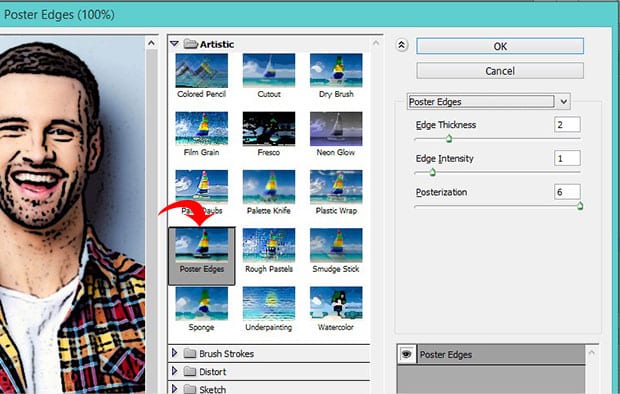
When you see your photo in the Photoshop workspace window, go to Filter » Filter Gallery and select the Artistic folder. Then select the Poster Edges option. This filter will enhance the edges of the portrait’s face and body.

Poster Edges

I’ll use the following settings for my photo:

  • Edge Thickness: 2
  • Edge Intensity: 1
  • Posterization: 6

Try these settings out on your image, then adjust them accordingly. 

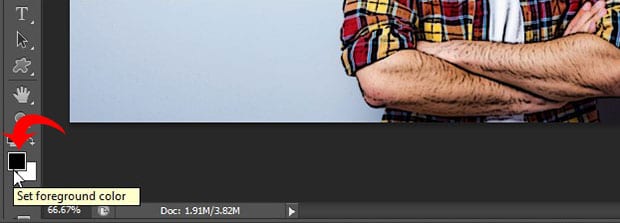
Before we move on to the next step, we’ll need to set the foreground and background colors to their default values — black and white, respectively. Go ahead and set those values if they aren’t already:

Set B/F color

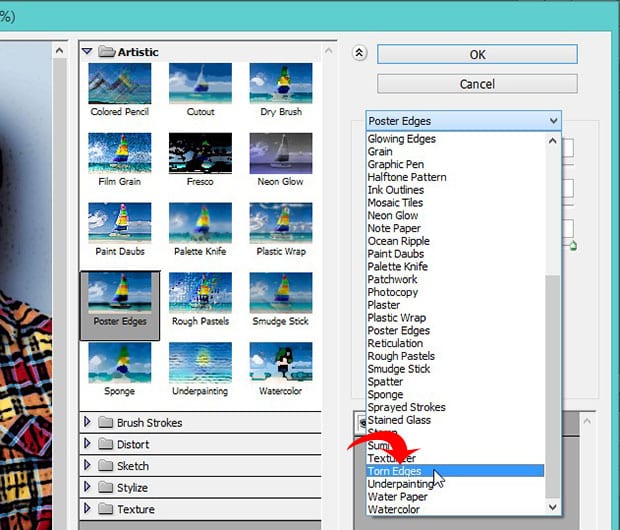
Next, go to Filter » Filter Gallery and select Torn Edges from the drop-down menu. This option will add some irregularity to the edges of the figure’s shape in your image.

Torn Edges

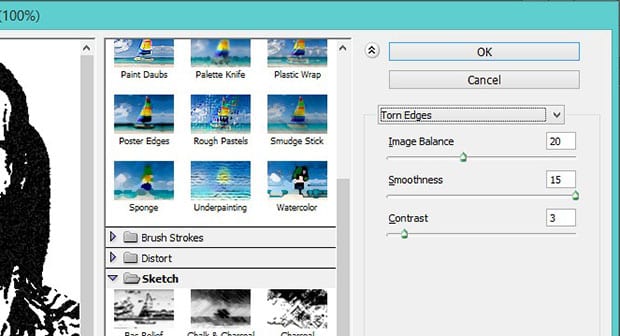
Here, I’ll use the following settings. Again, start with these values and adjust for your image:

  • Image Balance: 20
  • Smoothness: 15
  • Contrast: 3
Torn Edges Settings

Now, select the entire image (Ctrl + A) and copy the selection (Ctrl + C).

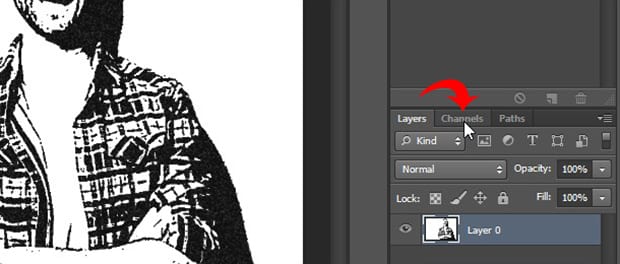
Channels

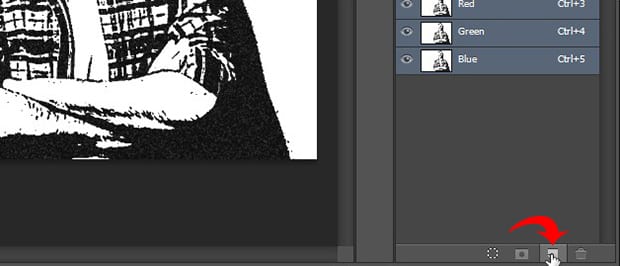
Next, locate the Channels Panel from the right-side of your Photoshop screen, near your Layers Panel. Create a new channel from the bottom right corner. Photoshop will name this new channel Alpha 1 by default, though you’re welcome to rename it if you like.

Create Channel

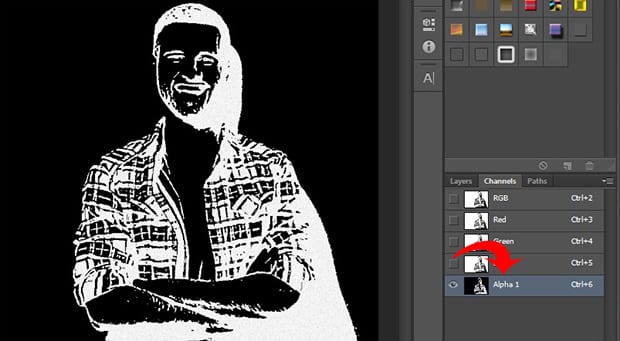
Paste your selection into the new channel you just created (Ctrl + V). Now we need to invert the image colors, which we can easily do by selecting Image » Adjustments » Invert.

Channel Alpha 1

Next, Ctrl + Click on the thumbnail for the Alpha 1 channel to select the white areas of the image.

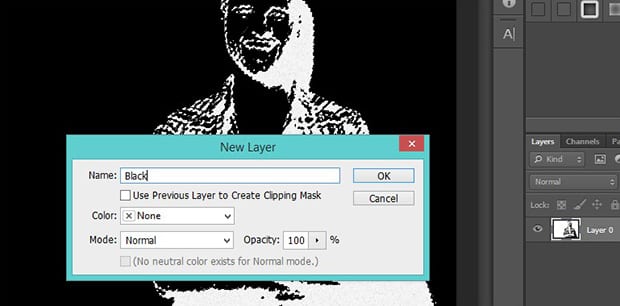
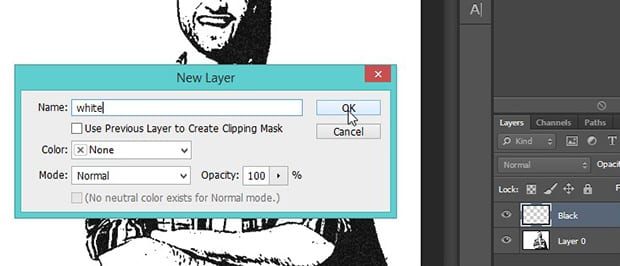
Then, in the Layers panel, create a new layer by choosing the New Layer icon. Use the paint bucket tool (keyboard shortcut g) to fill the new layer in with black. I’ll name this layer Black for simplicity’s sake.

Black Layer

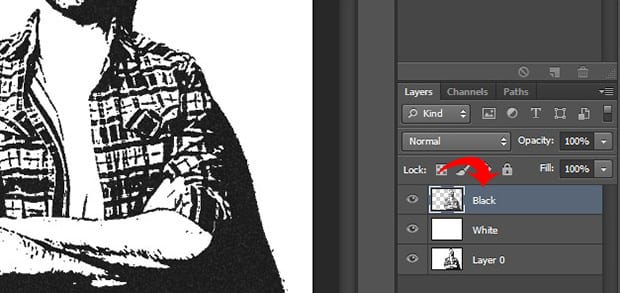
Then add another new layer and fill it with white. Once again, I’ll name this new layer White. In creating these two solid layers, we’ve separated the black and white colors in our original image.

White Layer

Next, drag the Black layer to the top of the Layers Panel so that it sits above the White layer.

Layer Move

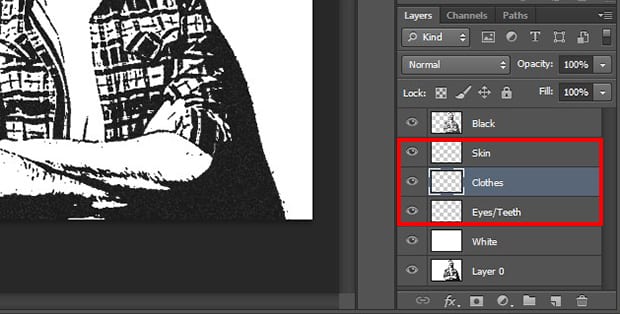
Now we need to add three more layers to house the colors for our skin, clothes and eyes/teeth.

Simply create three new layers by selecting Layer » New » Layer, then name them SkinClothes and Eyes/Teeth accordingly. Drag these three layers below the Black layer in the Layers Panel.

Three Color Layers

Next, decide what color you’d like the skin, clothes and eyes and teeth in your photo to be. For the photo in this tutorial, I’ve chosen the following colors

  • Skin: #e7c5b3
  • Clothes: #d9142b & #425ad7
  • Eyes/Teeth: #ffffff

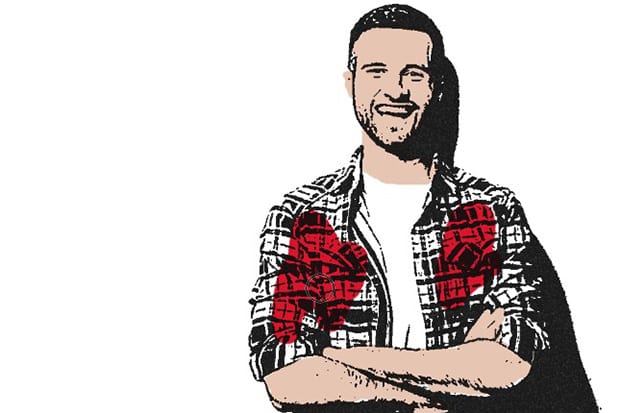
To apply the colors to the appropriate areas on the photo, select the Brush Tool from Photoshop’s left-hand toolbar. Then select the particular layer you want to edit, and carefully brush over your image to apply color in that area.

Repeat this process for each layer until all parts of your photo are colored in how you like.

Here’s what our final cartoon portrait looks like:

Brush Cartoon

Now, lets create a gradient background to make the cartoon really pop!

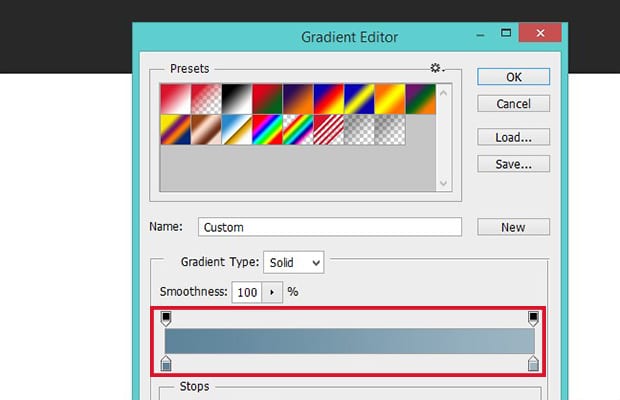
We’ll create another layer and name it Gradient, then select the Gradient Tool from the toolbar.

Notice the continuous gradient bar that appears within the Gradient Editor. Choose the boxes at either end of the gradient by double-clicking them, then specify your colors. 

I’m going to create a blue-gray gradient with the colors #5d849a and #9cb5c3. Click OK after you’ve set your colors.

Gradient Color

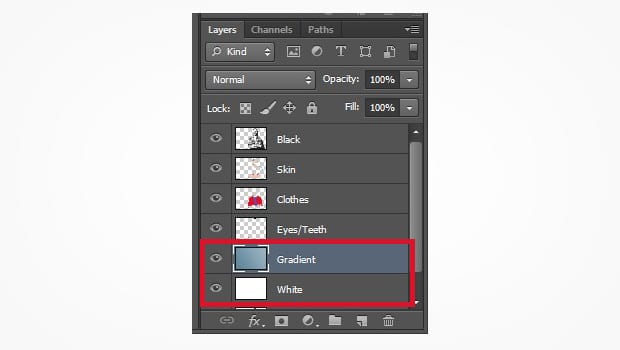
To fill the gradient, click and hold the mouse starting at the bottom-left of the image, and drag the mouse to the top-right of the image. Then release the mouse. Drag and drop this Gradient layer directly above the White layer in the Layers Panel.

Set Gradient Layer Position

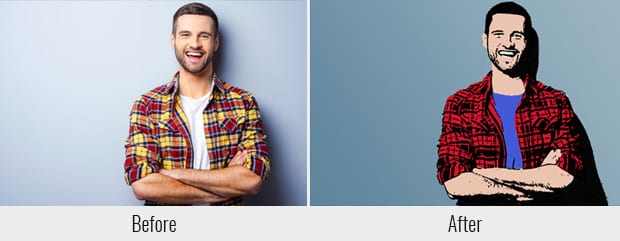
Now you’re done! You’ve created a cartoon of yourself in Photoshop, complete with a professional gradient background. Check out this before and after image of our cartoon effect edit below:

Cartoon Yourself in Photoshop

As we mentioned earlier, feel free to adjust the settings on the Poster Edges and Torn Edges filters to suit your image. However, make sure to follow the steps outlined in this tutorial sequentially. The order of the layers in the Layers Panel is important!

Best Tutorial for Cartooning Yourself in Photoshop

The internet is a great resource for finding tutorials on cartooning yourself in Photoshop! Video tutorials on free sites like YouTube show multiple ways to achieve cartoon effects in a number of different styles. 

Keep in mind that many other types of cartoon effects will require more extensive use of the brush tool and thus be more well-suited for work on a graphic or other tablet.

If you find yourself needing to apply cartoon effects to images often, consider investing in a tablet and stylus. They will make your life easier and open up a variety of other cartoon effect styles for you to try. 

As always, the best results come from practice. Don’t spend too long reading or watching tutorials. Instead, practice the technique yourself. You can even experiment with some of Photoshop’s other fun filters to see what kinds of unique effects you can create.

Cartoon Yourself!

We hope this article has helped you to learn how to cartoon yourself in Photoshop.