How to make a beat in FL Studio 2021 | Step by Step Guide (2021)
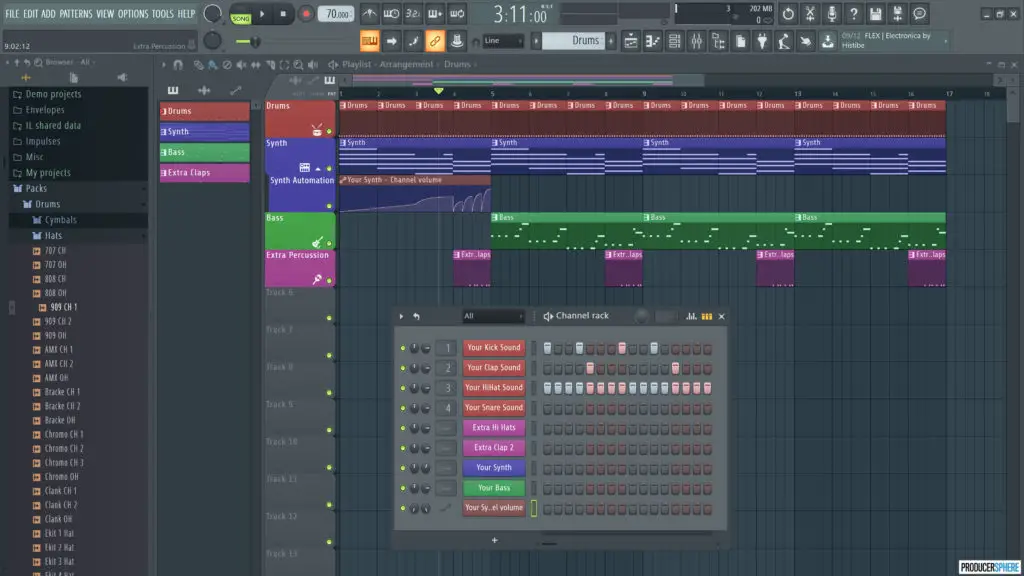
So you want to make a beat in FL Studio? Below is a no-nonsense guide to making your first beat, from a beginners perspective, to simplify the whole process for you.
Making a beat in FL Studio: Before you begin
For a beginner, FL Studio can seem very daunting and sometimes overwhelming. We’ve all been there.
But FL Studio is an unbelievably powerful program, and when used correctly, can be used to make any sound or track you can imagine.
In order to begin making a beat in FL Studio, you must have the following:
1. A full (or even the trial version) of FL Studio
The producer and signature bundles of FL Studio can get quite pricey, and for a beginner this can be very off-putting.
The most basic version of FL Studio, “Fruity Edition” definitely has everything you need to create incredible beats. So you aren’t ready to pull the trigger on the more expensive versions, this version will definitely give you what you need in the early days of your music production journey.
Here are the pricing options for Fl Studio:
| FL Studio Edition | Price |
|---|---|
| Fruity Edition: | $99 |
| Producer Edition: | $199 |
| Signature Bundle: | $299 |
| All Plugins Bundle: | $899 |
FL Studio also has a free trial version of the product, where you can use almost all the plugins available, however you can’t re-open a file once it’s saved.
Click here to download FL Studio’s free trial.
2. A very basic understanding of the FL Studio interface
This seems obvious, but don’t jump before you can walk. If you try and skip the learning curve and start making beats before you even understand the first thing about FL Studio’s interface, you’ll probably end up confused and unmotivated.
Make sure you understand the very basic functions of the 5 main windows of FL Studio – the browser, the channel rack, the piano roll, the playlist and the mixer. (Highlighted below).


Have a read of our full, free guide to the basics of FL Studio.
3. Some samples/sounds to play around with.
To make a beat in FL Studio, you’re going to need a selection of drums and other samples to play around with.
You’re in the early days of production, so I’m assuming you don’t want to be forking out a huge amount of money, if any, for samples right now.
Here is our HUGE list of FREE sample packs across a wide range of genres.
Or check out our guides to the best sample packs for genres such as Lofi, Hip Hop, House, Trap, etc.
So now you should have a copy of FL Studio, a few samples/sounds of your own, and a basic understanding of the program.
Now it’s time to get creative, and learn how to make a beat in FL Studio.
How to make a beat in FL Studio (Tutorial)
Here are the main steps to making a beat (FL Studio):
1. Creating a drum pattern in the channel rack
2. Adding a VST instrument sequence
3. Adding other elements (percussion)
4. Building and structuring the beat in the playlist view
5. Automation
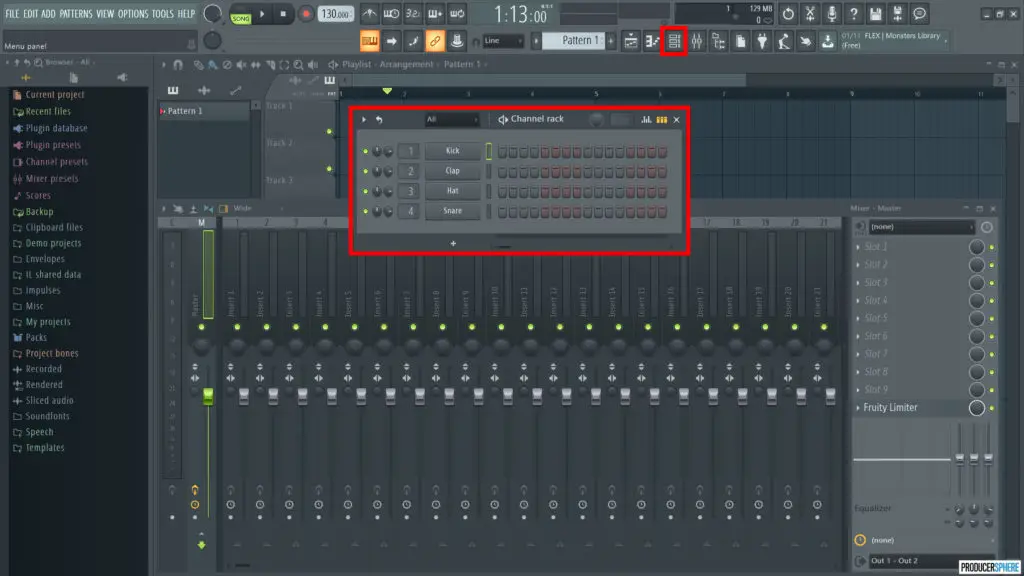
1. Creating a drum pattern in the channel rack
The first step to making a beat in FL Studio is to create a simple drum pattern that will be the backbone of your beat.
The default drum sounds that come with FL Studio are pretty terrible, and you definitely want your own drum sounds to create the beat.
Click here for a great resource for free sample packs, or click here for our guide to the best sample packs for Lofi, Hip Hop, Trap, House + more.
Now you’ve got your sounds, it’s time to import them into FL Studio.
Importing your sample packs into FL Studio
Open FL Studio, go to Options in the top menu, then to File Settings, then under Browse Extra Search Function, click a folder down the left hand side to add a folder to the browser.
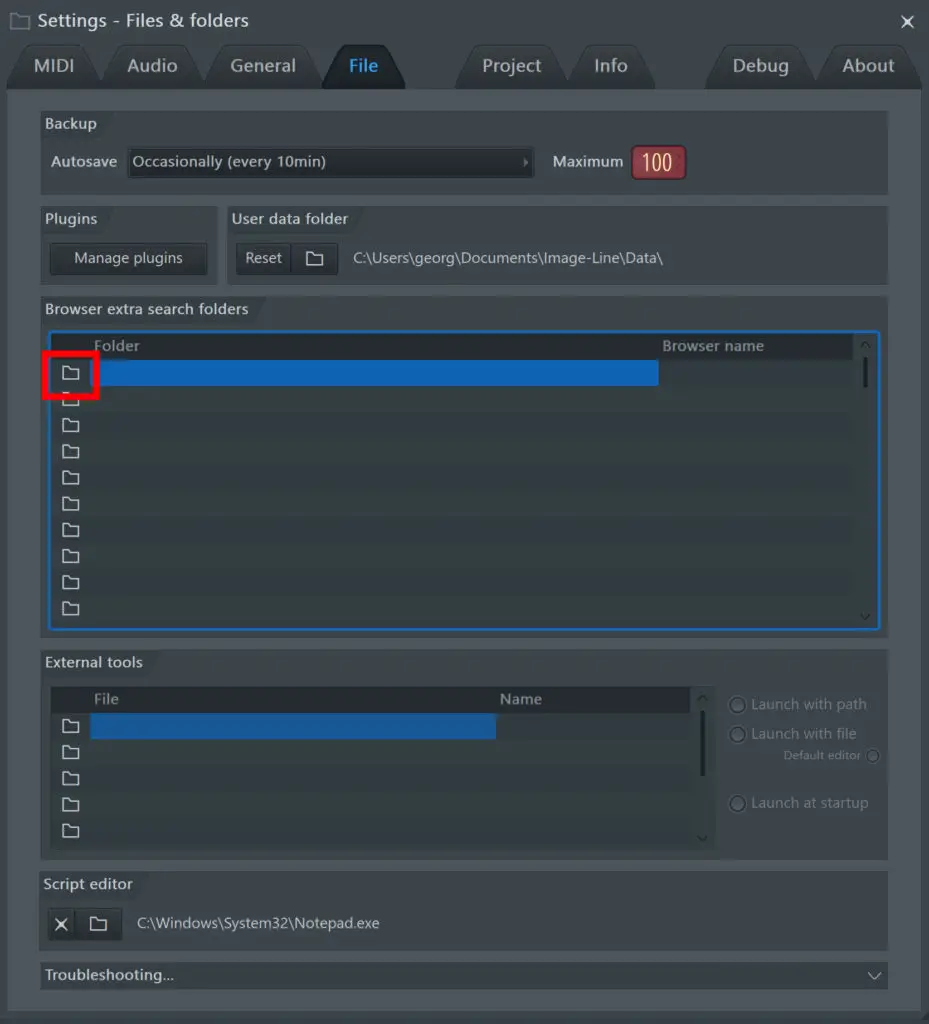
Once you’ve chosen a folder, click OK, and if you want, you can rename the folder with FL Studio by clicking the name in the Browser Name column on the right. You should now see your chosen folder within the browser panel.
Note: Sometimes the folder won’t automatically rename itself within the browser. To fix this simply click re-read (the arrow next to the magnifying glass at the top of the browser, and your folder name should update.
How do I get sounds from the browser into my track?
To import a specific drum sound into the project, simply left click on the desired sound file in the browser, and drag it into the channel rack. The best thing to do is drag and drop the files just below the bottom sound in the channel rack, as dropping it on top of another file within the rack will replace it.
For the next step, add a kick, snare, clap and a hi hat that take your fancy. You can add more percussion elements later, for now you just need to create a basic drum beat.
Creating a drum pattern
This is where the fun really begins. FL Studio’s iconic step sequencer is one of the easiest ways to create a drum pattern in any DAW. Hands down.
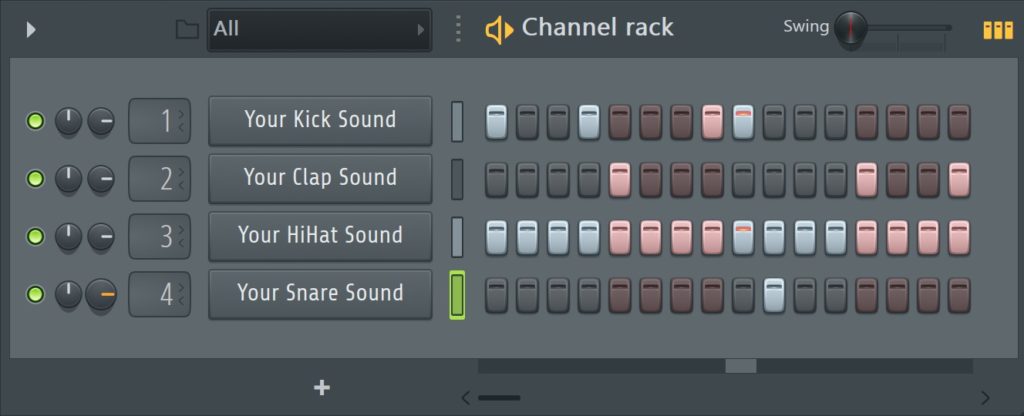
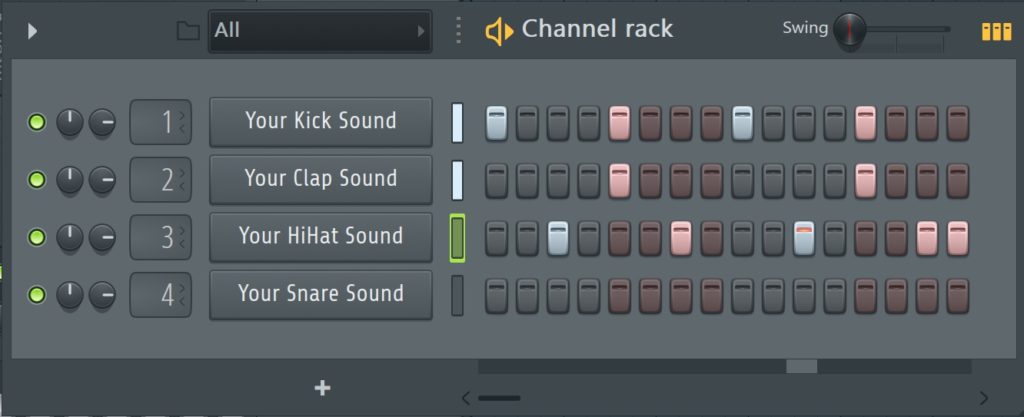
To add a step or drum “event”, left click on any of the step buttons and they will light up, and to delete steps, just right click your highlighted step. You can also drag left or right click to select multiple steps within a channel at once.
In the step sequencer, play around with creating drum patterns with FL Studios incredible step sequencer.
If you’re a bit lost, try recreating one of these drum patterns:
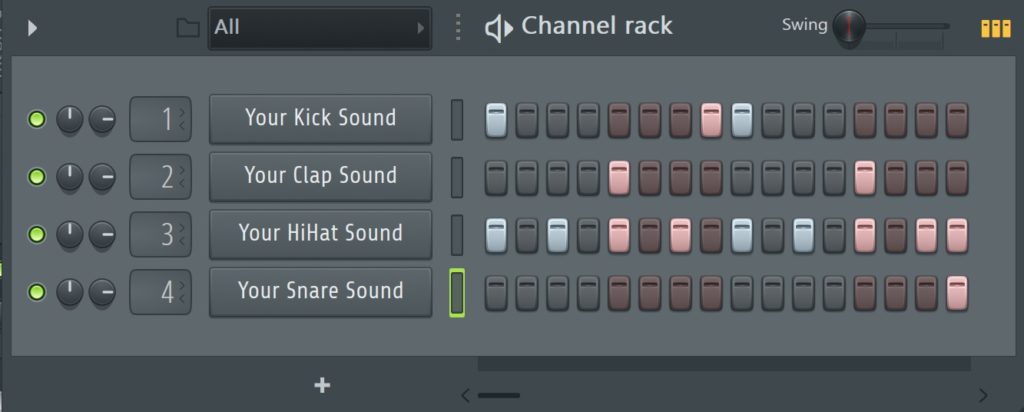
Basic hip hop beat
Recommended tempo: 80-90 bpm
Basic trap beat
Recommended tempo: 70 bpm
Basic house beat
Recommended tempo: 125-130 bpm
Make sure you rename and colour each drum track to keep your beat organised. To do this, simply right-click a sound, click “Rename, Color, and Icon…“.
Adding the drum pattern to your track
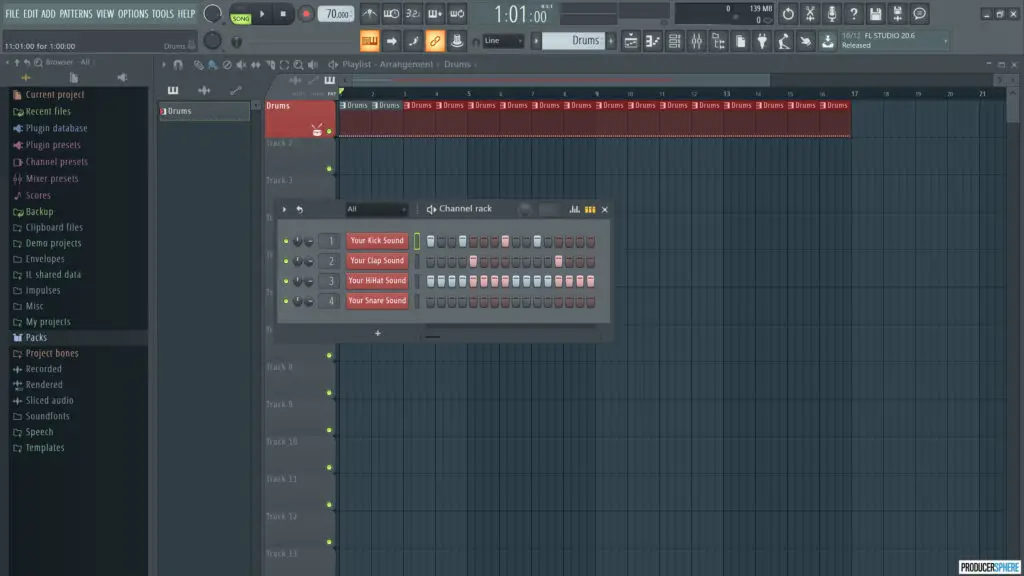
To add your pattern to your track, simply left click within the playlist section, and your pattern will appear.
Unlike almost all other DAWs, you can place any pattern anywhere within the playlist, and each pattern is not limited to its own track row.
To keep things organized, right click on the track name, and select “Rename, color and icon…” and name it “Drums”. It’s always easier to produce full, complex tracks when sounds are kept within their corresponding tracks.
Go ahead and add 4, 8 or 16 bars of the drum pattern to your playlist. Your screen should now look something like this:
2. Adding a VST instrument sequence
So you have your basic drum beat, and have sequenced it into the playlist view…
Now it’s time to add your first instrumental sound or sample. The main way to do this would be to add a VST instrument and program a melody or chord progression using the piano roll, or using a MIDI controller/keyboard.
There are other ways of adding your first instrumental sound, such as sampling, speeding up/slowing down and looping other songs or “sampling”. For the sake of keeping things simple, I’ll just focus on adding a MIDI pattern using a VST instrument.
What is a VST instrument?
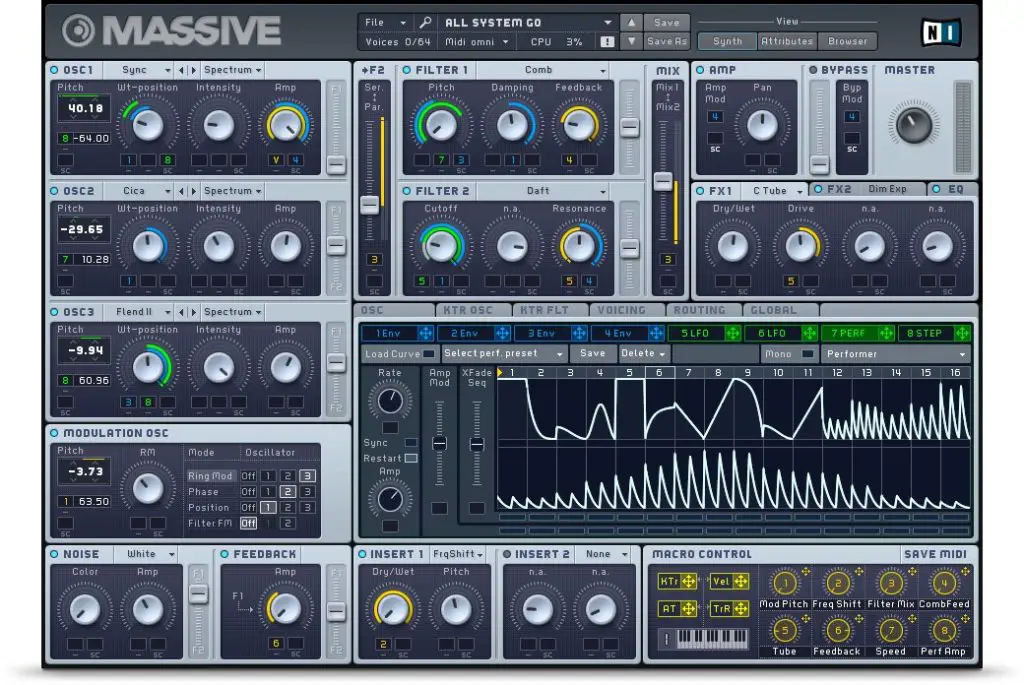
VST Instruments generate audio and act as software-based instruments. They often emulate recognizable sounds of famous synthesizers and other instruments. Popular VST instruments include Serum, Massive, FM8, Sylenth 1 and Absynth.
These programs can seem daunting to a beginner, as many VST interfaces appear very complex and overwhelming.
So for now, instead of creating a new sound with one of these programs, we’ll just use one of the thousands of presets available for FL Studios instruments.
Click here for our guide to the best VST plugins for beginners.

Creating a new pattern for your VST instrument
Before you begin creating MIDI patterns for your VST instrument, make sure you’ve selected a new pattern, so your drums and instrument patterns are separate.
To do this, navigate to the pattern selector in the top menu and select the plus button to create a new pattern (see above). This creates a blank channel rack within which you can create your new instrumental pattern.
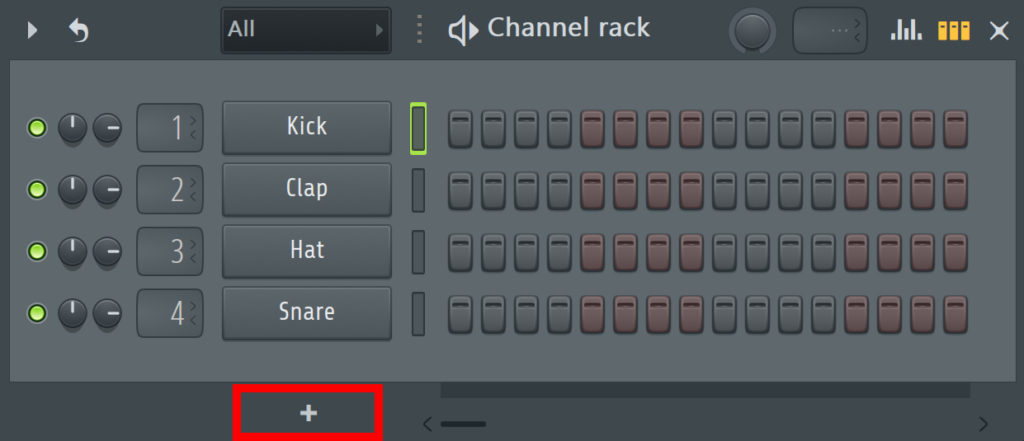
How to add a VST instrument to your channel rack
To add a VST instrument to your track, simply click the plus button at the bottom of the channel rack (see above), and choose from the list.
Again, for simplicity, I will be adding Sytrus, a great FL Studio plugin with lots of fantastic presets.
If you’re unsure about how to install and add your own VST plugins to FL Studio, here is our quick, easy guide.
Creating a MIDI sequence for your VST instrument
You can create a MIDI sequence in the piano roll for your chosen instrument.
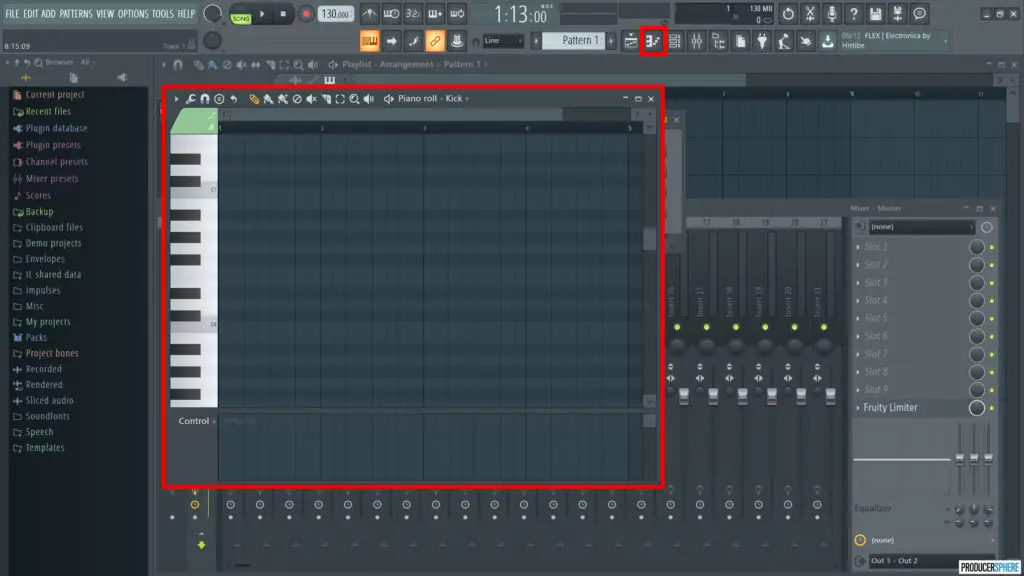
The piano roll is where you can compose, slice and edit MIDI notes of a selected channel with an incredible amount of detail and precision.
It is incredibly helpful for example, to tweak a MIDI keyboard performance or lengthen certain notes within a sequence.
To open to piano roll for a chosen channel, right click on the channel name and select Piano Roll.
Have a play around with the piano roll, creating chord sequences and melodies for different VST instrument presets and sounds.
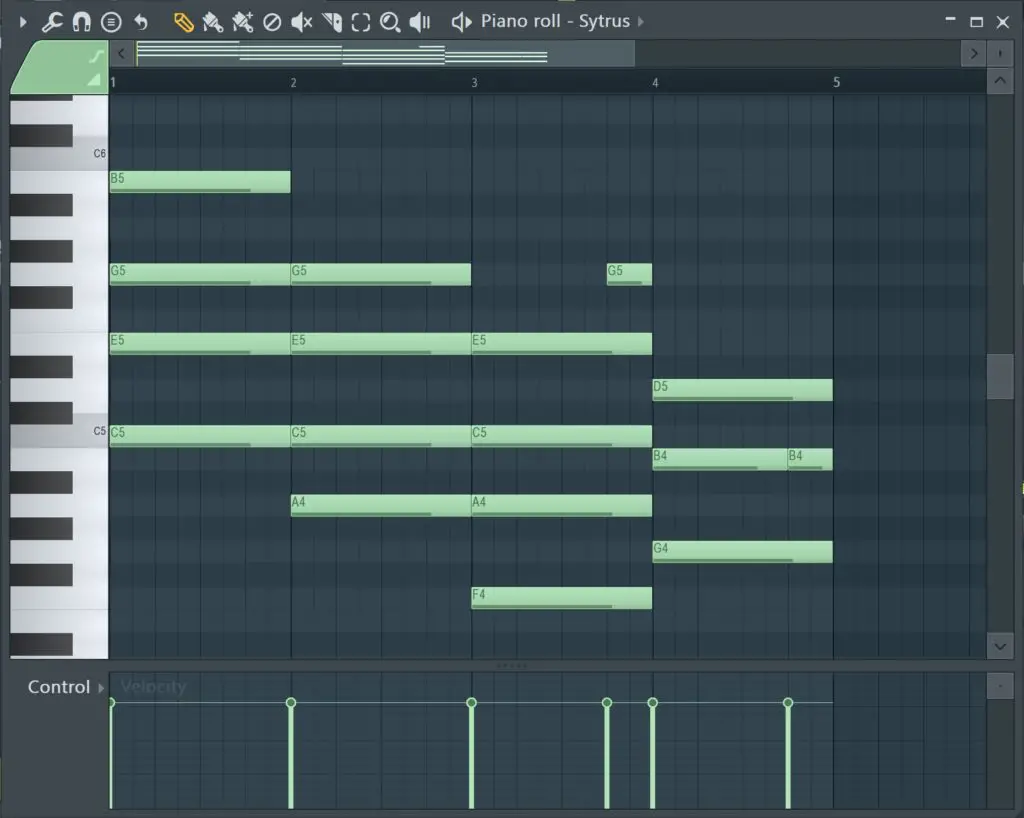
Try recreating these jazzy chords within your piano roll if you’re stuck for ideas.
Click here for our full guide to FL Studio, including an in-depth look at the piano roll editing features.
Adding your VST instrument pattern to your track
To add your pattern to your track, simply left click within the playlist section, and your pattern will appear.
Add it below the drum pattern you added earlier, and remember to color and organise the track.
Repeat this step as many times as you want. This way you can add and layer as many instruments as you like: Sub-bass, bass, synths, keys, pianos, strings, pads, stabs, etc.
Here’s an example of what your screen may look like now:
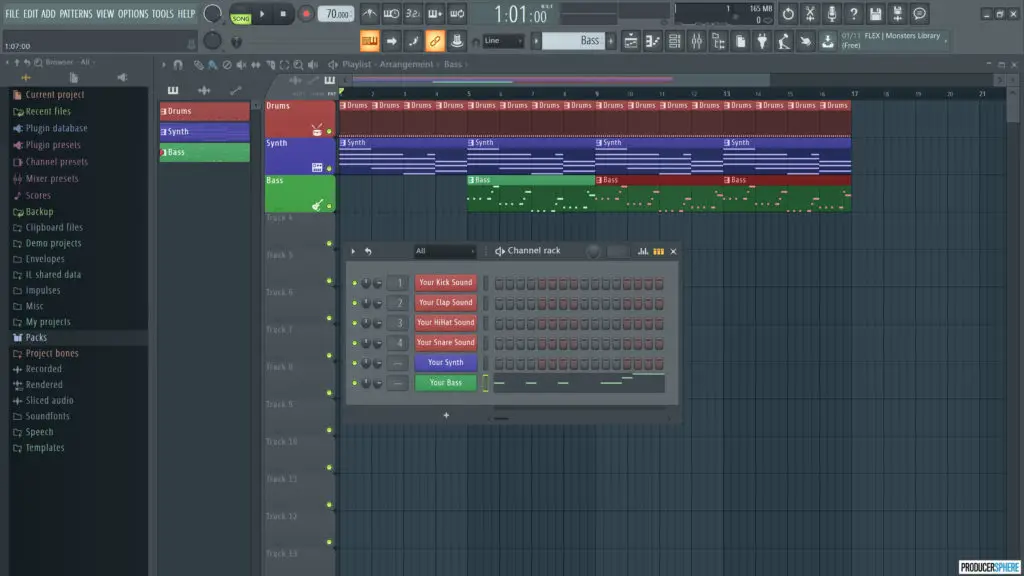
Now you have the skeleton of your beat (a drum beat and a instrument sequence), it’s time to add some additional elements to breathe some life into your beat.
Extra percussive or FX element are a great way to make your track stand out from other, more simplistic beats.
Adding extra percussion
Adding extra percussive elements is a very similar process to creating your main drum beat.
Again, using the step sequencer, create a pattern of percussive elements to add to your track. This can come in the form of snare/tom fills, extra hi hats to evolve the drums in a certain section of a track and more.
A few ideas could be:
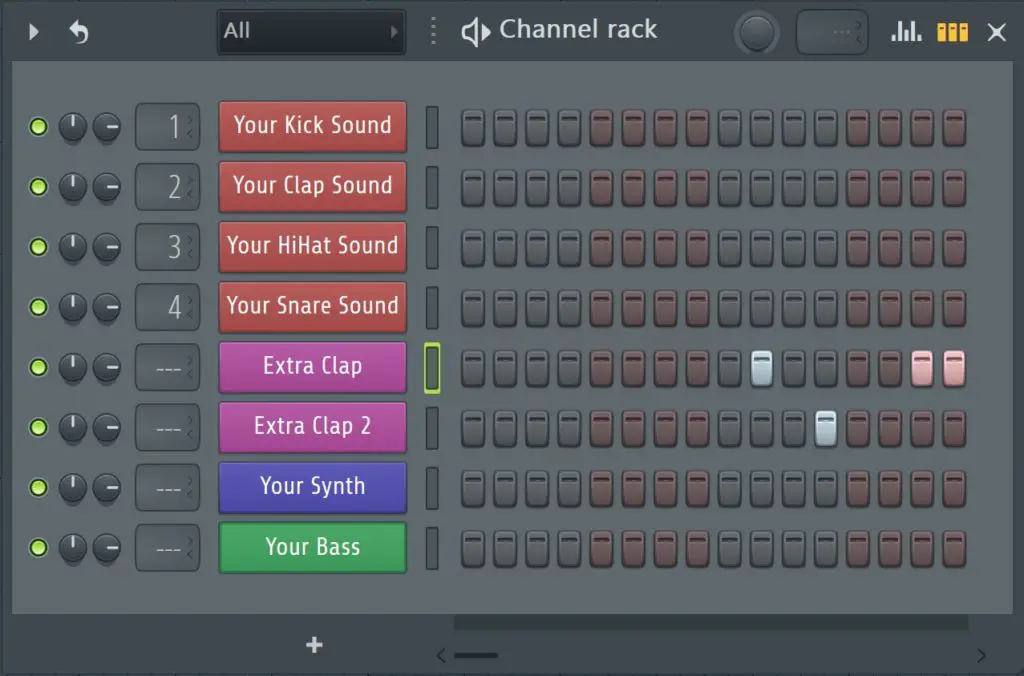
Hip hop – clap-fill for the 8th bar
Recommended tempo: 80-90bpm
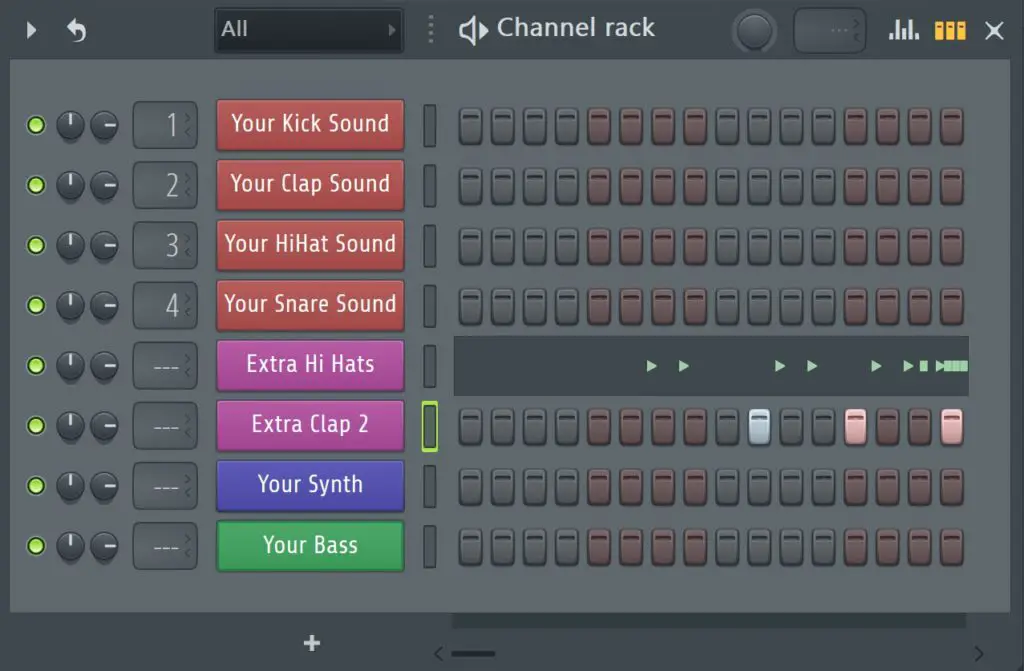
Trap – hi hat roll and percussion fill
Recommended tempo: 70bpm
Note: To add percussion hits with more precision, open the piano roll for that sound.
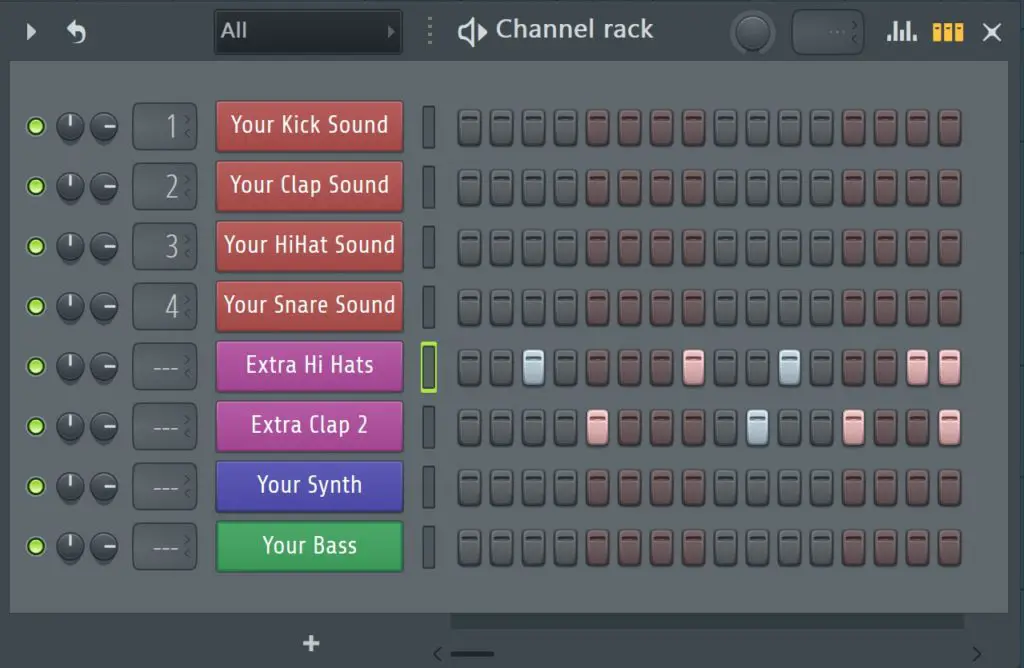
House – extra hi hat pattern for beat development
Recommended tempo: 125-130bpm
Add your extra percussion to your track in the relevant places (i.e for a drum fill, add it to each 4th, 8th or 16th bar.
Again, remembering to organise it effectively, your screen should now look a little something like this.
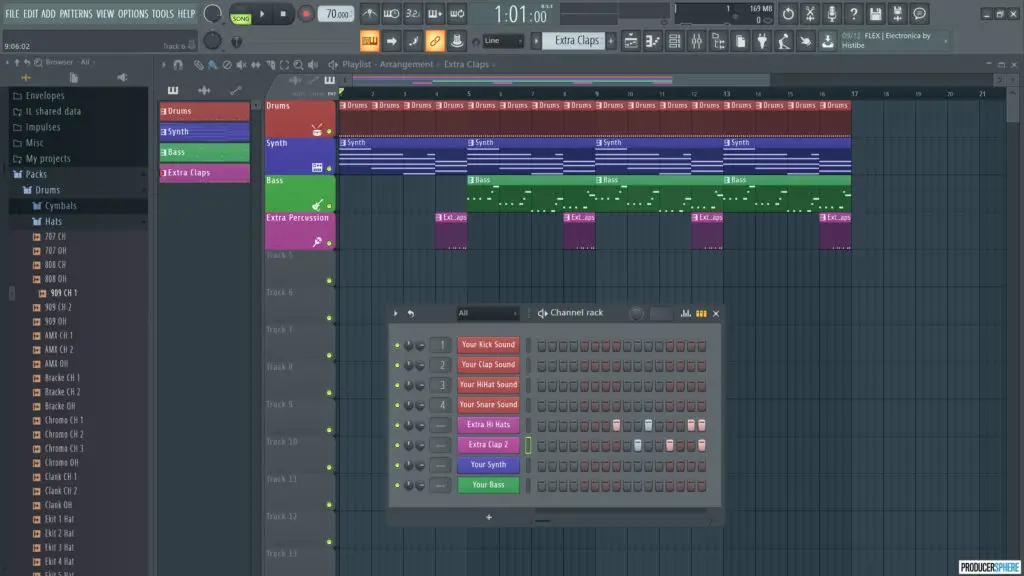
So, you have a basic understanding of how to add different drums beats, percussive patterns and multiple instruments to the playlist view.
Now it’s time to build and sequence your tracks from a layered loop to an full, evolving track.
If you’re new to the playlist view, or want more information on how to edit, slice and arrange patterns within this interface, check out our FL Studio guide which will take you through this.
This step is very important for building a song, so elements are introduced throughout a track. This creates a more professional sounding song as opposed to a stand alone loop or idea.
If you’re creating instrumental beats, have a look at similar tracks in the same genre to see how they are structured. For example:
Lofi hip hop beats are usually only about 2 minutes long, without too much beat development, but include sections where drums drop out, or a filter is added, and then they come back in for effect.
Full house track mixes are often 5-7 minutes long, with lots of beat development, and usually start with a 4-on-the-floor kick pattern only.
If you’re just starting out, don’t try and re-invent the wheel. Know your genre, and once you’ve had some practice, you can start getting experimental.
If you’re new to music production, you may not have heard of automation. But in order to create great, professional quality tracks, you need to learn what automation is and how to use it.
What is automation?
To put it simply, track automation is a way of “automating” a specific parameter, such as volume, pan, reverb etc, so that the parameter changes as your track plays.
A few examples would be: slowly fading in a pad over the course of 4 bars, sidechaining, and adding more reverb to a sound during a certain section of your track.
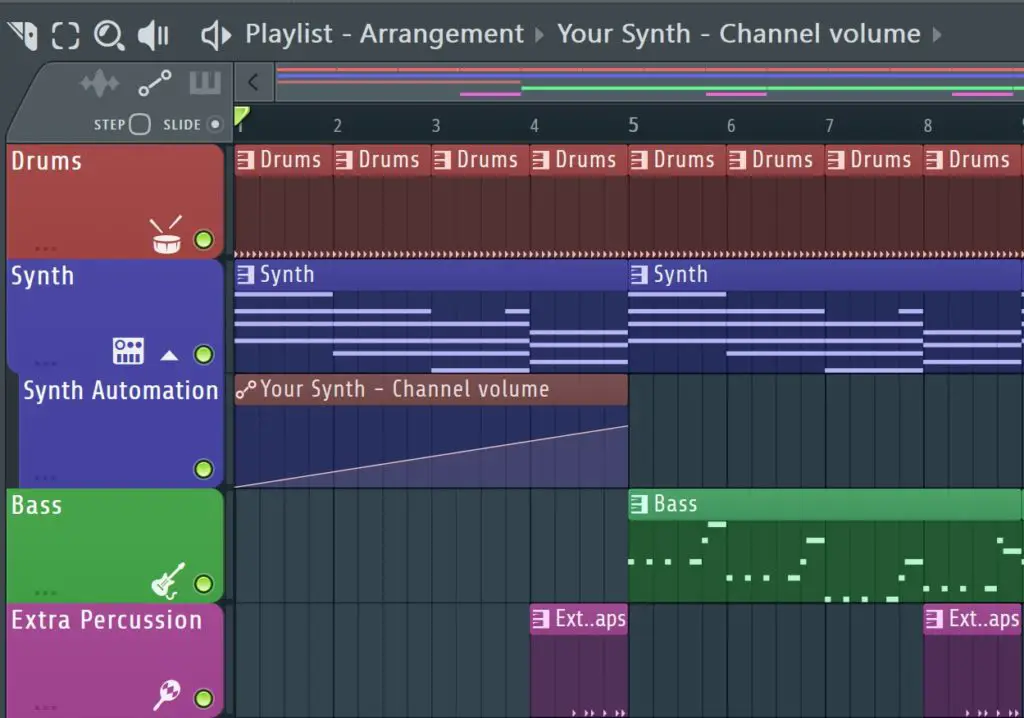
How do I add automation?
To add automation, simply right-click on a parameter in FL Studio such as track volume, and select “Create Automation Clip“. This will create a track-length automation clip in a free playlist track.
Seems easy? As with most things in life, it’s not that simple. There are a few extra things you have to consider while adding automation.
Before adding automation clips…
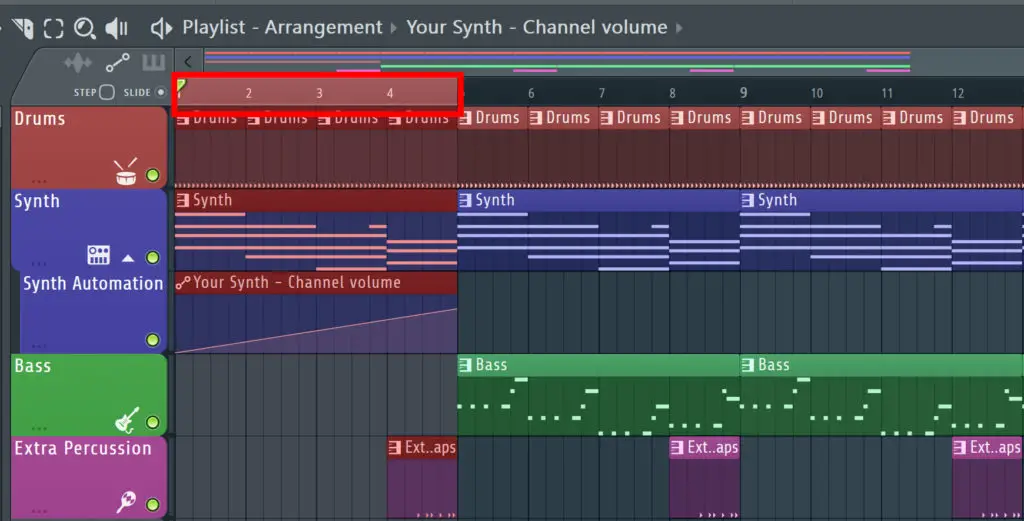
Always select the section of the track you’d like to add the automation clip to first, before adding the automation clip.
Adding track-length automation clips for each parameter can get very messy.
To select a section of the track, double click/Ctr + click and drag along the bar just above the playlist where the bar number is displayed (see image above). This will highlight the selected section in red.
Now, when you add your automation clip, it will only be added to this section.
Editing an automation clip
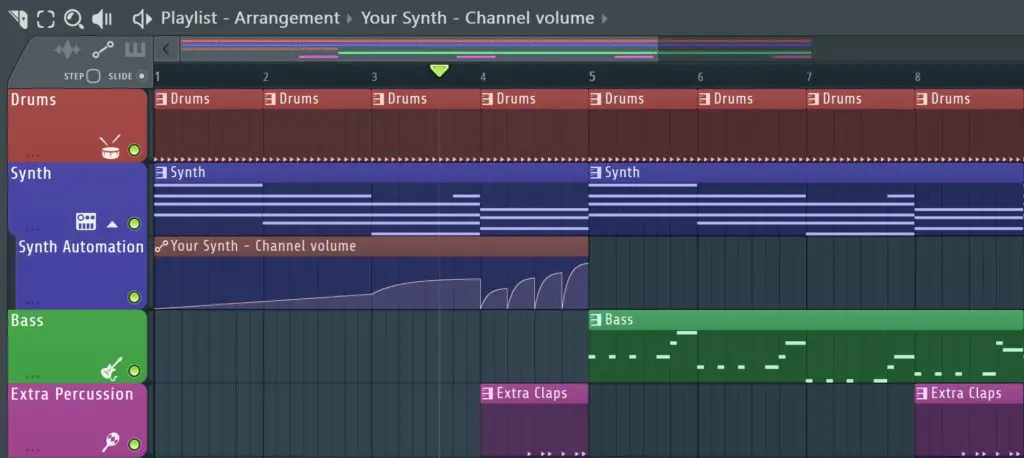
To edit an automation clip, simply right-click within the clip, and new points will be created in the clip, which you can then left-click to drag anywhere you’d like.
Useful tip #1: If you left-click and hold in the line between two created points and drag, this allows you to fine-tune the curve between two points.
Useful tip #2: By right clicking on any automation point, you can change it’s “mode”, for example creating a “pulse” or “smooth stairs” effect. This allows for a huge amount of sonic creativity.
6. Mixing
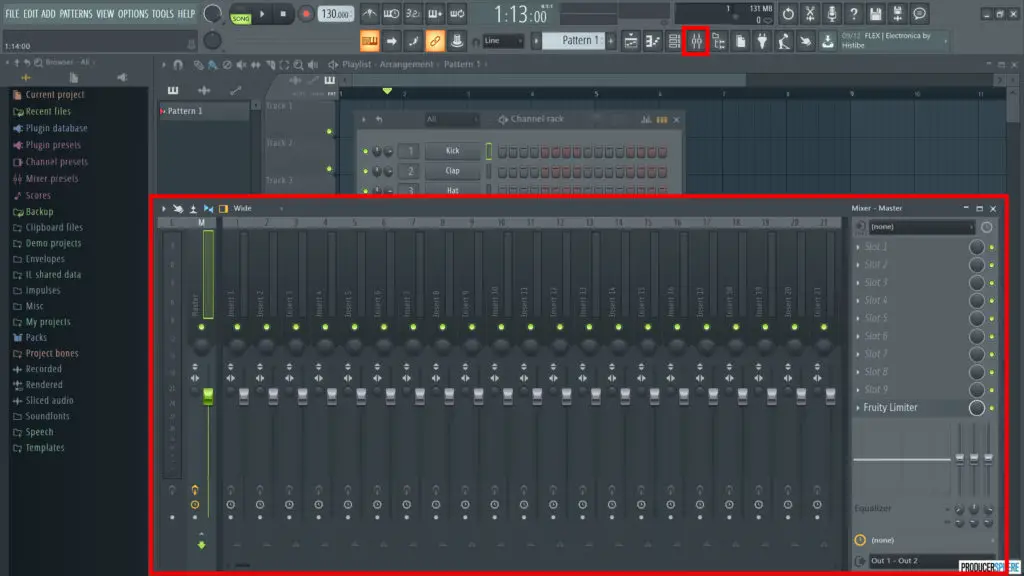
Mixing a track can be a very in-depth, complex process, especially for large, layered mixes. If you’re a beginner to the mixer in FL Studio, all you really need to focus on a basic track levels, and adding FX.
The mixer is where you’ll mix your song, focusing more on sound design, effect processing and fine-tuning your tracks. You can add effects such as reverb, delay, compression and many, many other audio effects to your mixer channels.
Using this mixer effectively can completely transform your songs into professional-sounding masterpieces.
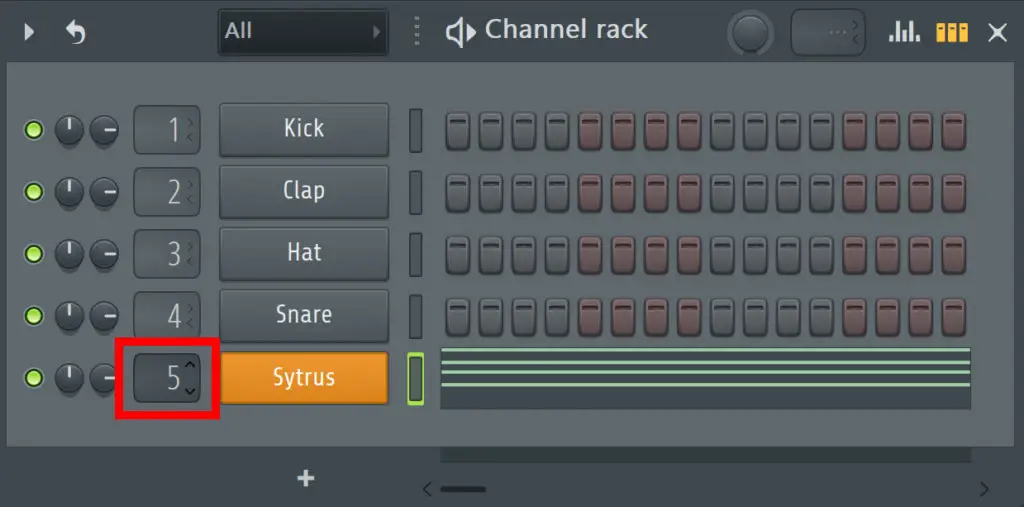
Sending sounds or instruments to mixer channels
To send a specific sound to a specific mixer channel, left click and drag the numerical value to the left of the sounds name within the channel rack to your chosen value. This will send your sound or instrument to the corresponding mixer channel, in which you can now add effects or change certain parameters.
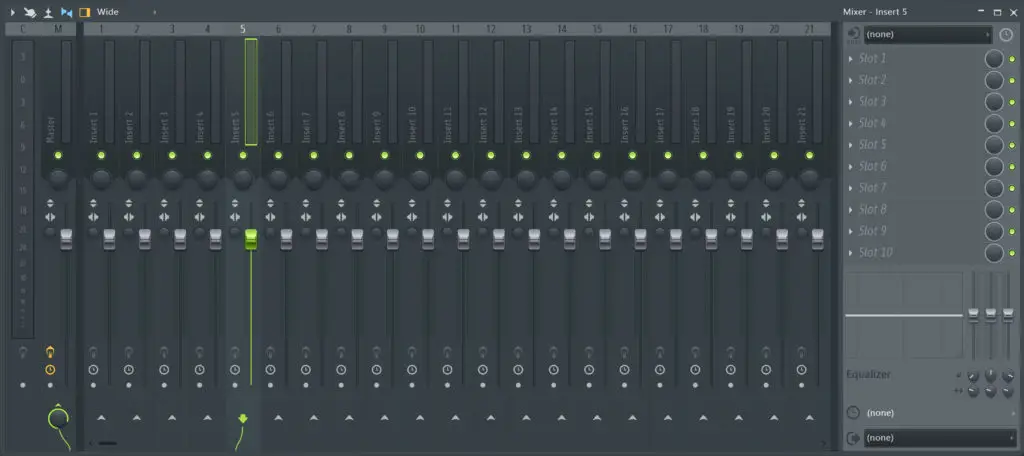
Track levels
You’ll notice the far left mixer channel is your master channel, which allows you to edit the overall pan, volume and other functions of the entire track.
Focusing on one individual mixer channel along the mixer window, you’ll see multiple buttons and a large fader control for each mixer channel. For a more complete guide to these controls and how to use the mixer, click here.
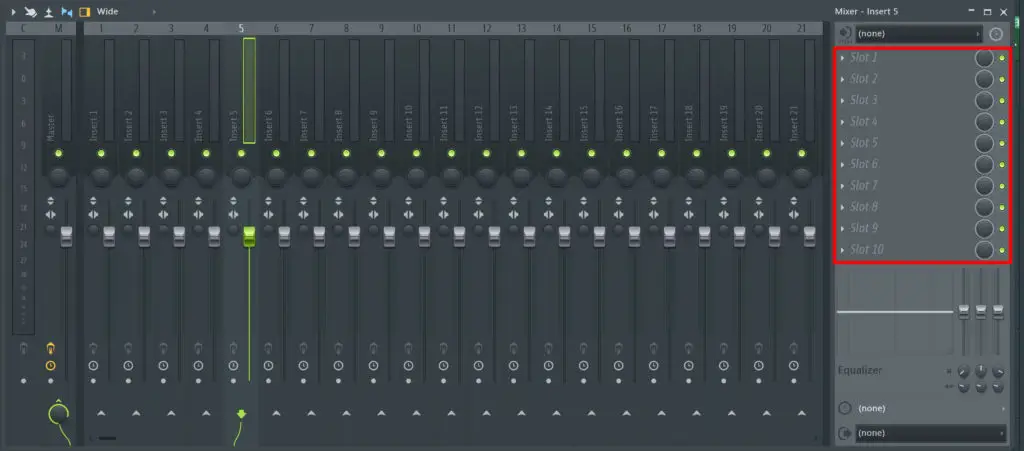
Adding effects to a mixer channel
On the right hand side of the mixer channel, you’ll see 10 effect slots. By selecting one of these slots, and choosing an effect, it will add the selected effect to your mixer channel.
There are so many effects plugins included with FL Studio, and thousands more available online.
Here is an overview of the best effects to play around with for beginners (all included with FL Studio).
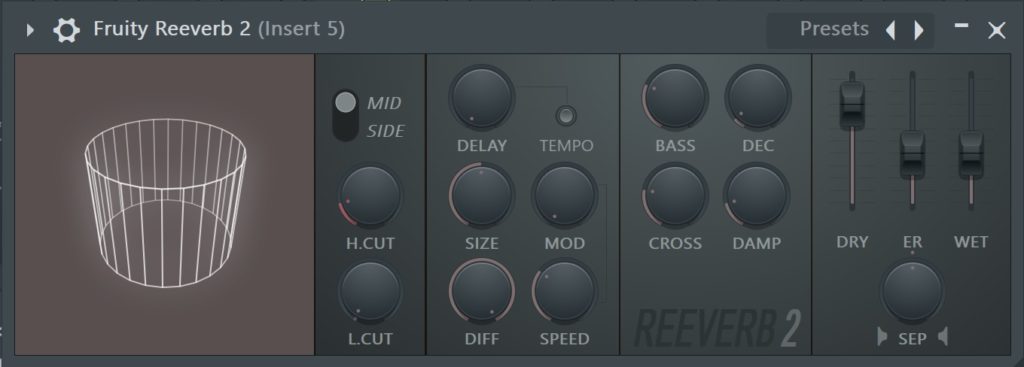
Fruity Reeverb 2: This is a incredibly high quality reverb plugin that honestly sounds unreal straight out the box.
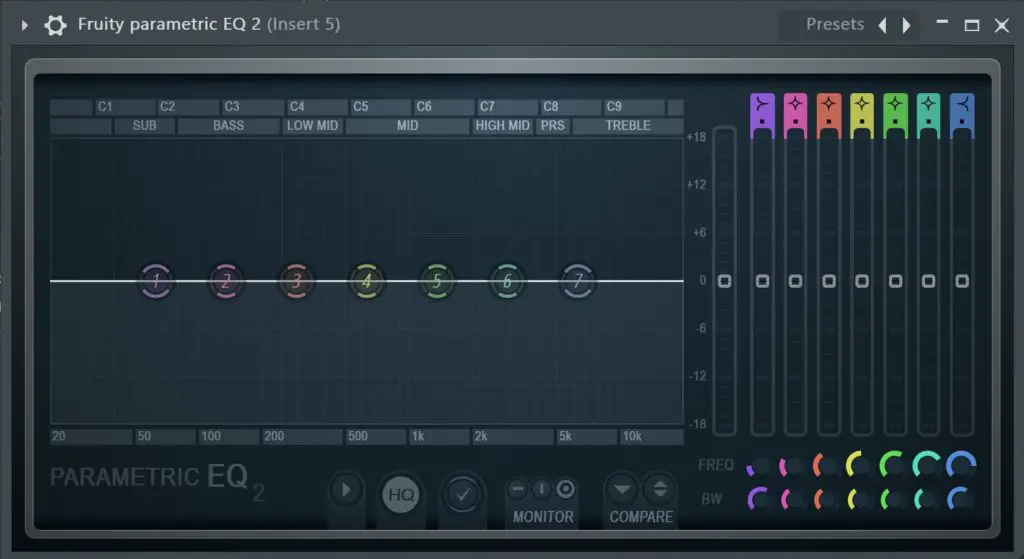
Fruity Parametric EQ 2: My favourite EQ plugin, period. Maybe it’s bias as I’ve used it for so long, so it’s my favourite plugin for fine-tuning and automating EQ.
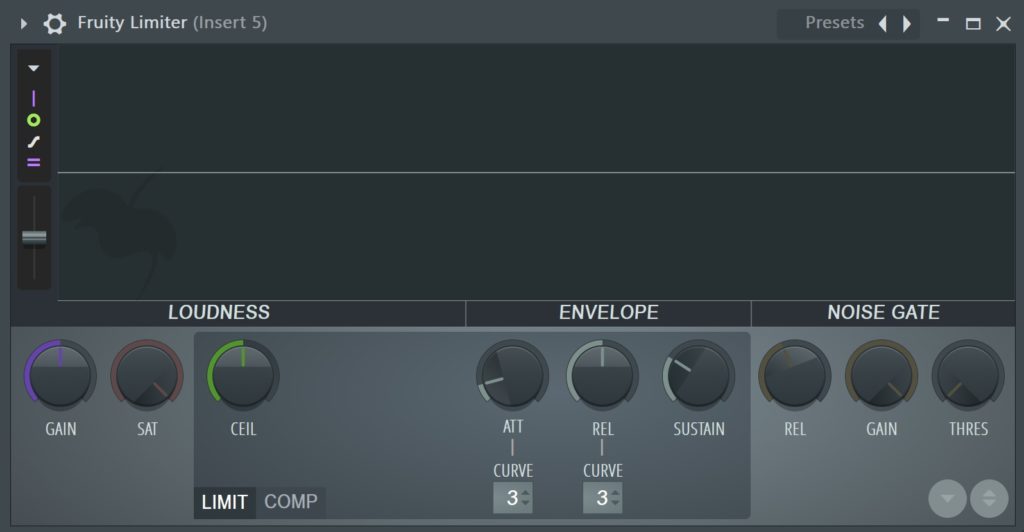
Fruity Limiter: A fantastic limiter for limiting and compressing sounds. In the compression mode, it visualises the sound you’re compressing as it’s being played, which is a very useful tool for getting your compression levels right.
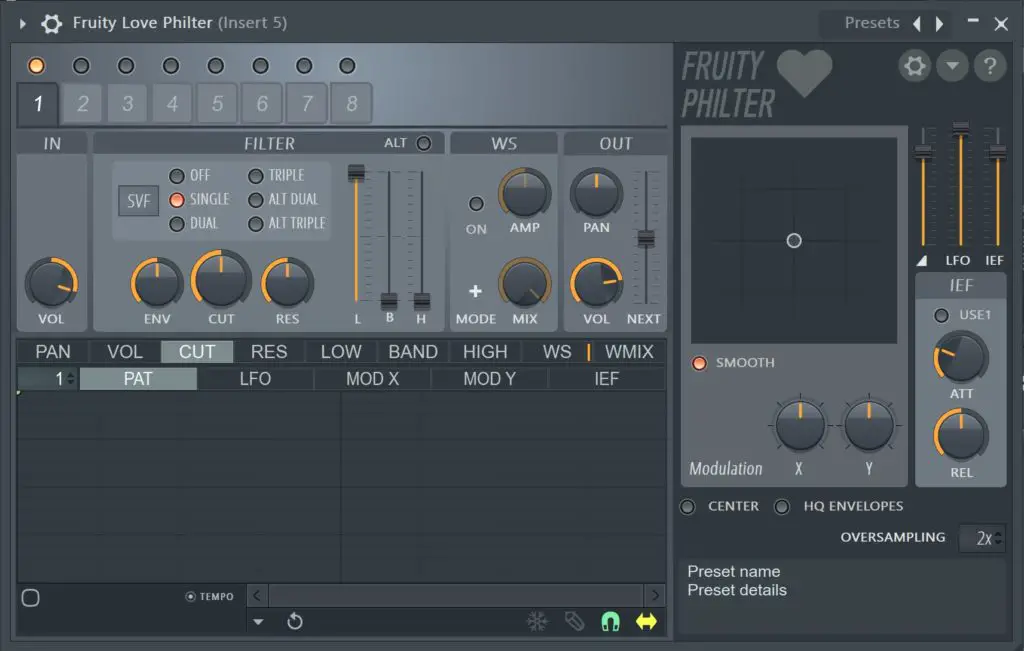
Fruity Love Philter: A versatile, powerful tool for adding filters and modulating effects.
Now you can add multiple effects to your tracks, add automation clips for the actual effects, sequence your patterns and structure your track into a fully fledged song.
And there you have it, a basic guide to making a beat in FL Studio.
You’re either feeling one of two things right now: creatively inspired, or completely confused.
If you’re feeling inspired and ready to create, I have nothing more to offer you. Get to work and create some amazing tunes.
If you’re feeling confused and overwhelmed by all this information, don’t worry. It took me forever to understand FL Studio, and even longer to create something half decent.
Keep practising, and do your research. There are so many guides and Youtube videos available to show you how to use this incredible program.
Be prepared to create some terrible music, because eventually you’ll actually create something worthwhile, and that is the best feeling in the world.





 While
While 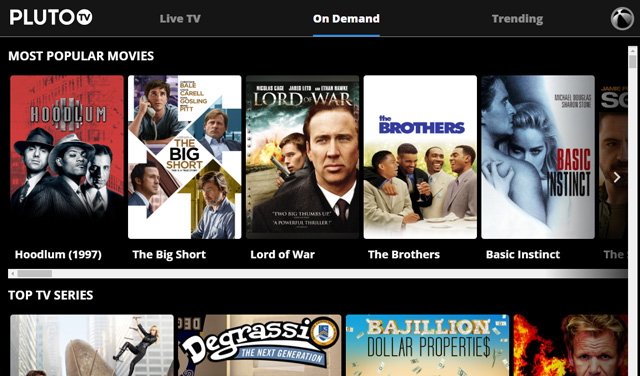 Pluto TV gives viewers access to many of the top current and old TV shows, but of course, content is limited. Not all episodes of the shows available for streaming on this service will necessarily be available.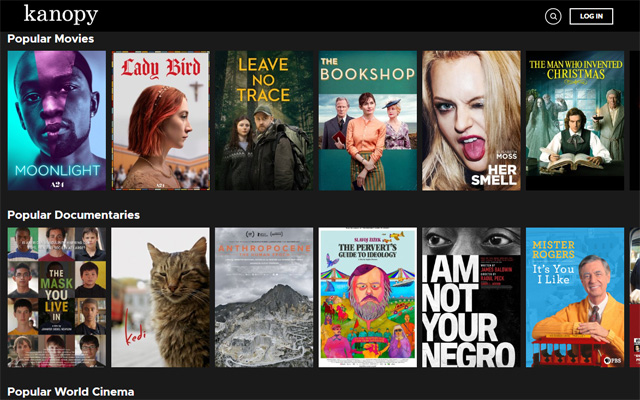
 True to its name,
 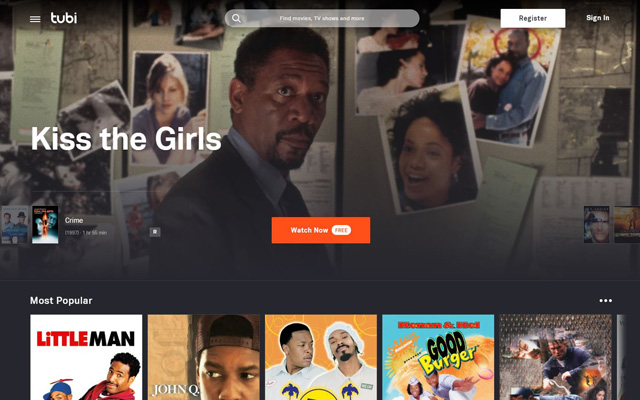 It takes less than a second to sign up for a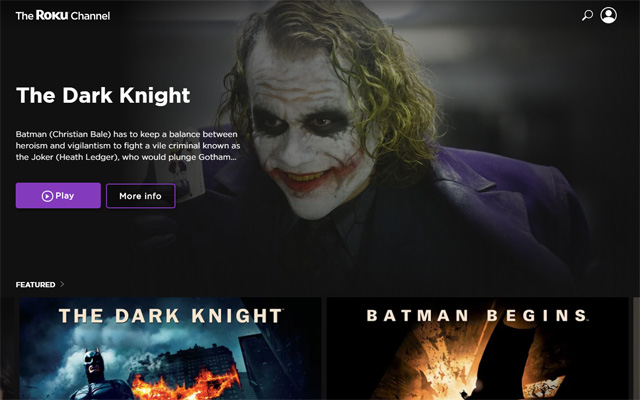
 With very niche content,
  While we’re on the subject of specialized streaming services, we need to talk about