It's easy and fun. The results can be amazing!
Themes
The following is a very popular method among Windows 10 users to install third-party themes. Patching you system will allow you to control the look of your File Explorer, and other applicable programs like the Task Manager.
It's important to remember before continuing to always set a restore point before installing a custom theme. Please follow how the developer explains the installation STEP-BY-STEP.
First you will need UltraUXThemePatcher, which will allow for installing of third-party Windows 10 themes.
FAQ (From the site)
Problem - Patcher is patching, but after a reboot nothing is modified
UXThemePatcher does not patch all files even if my Windows Version is supported. How do I fix it?
In rare cases after a Windows 10 Update, the patcher is not able to take ownership of the necessary files in c:\windows\system32 (uxtheme.dll, UXInit.dll, themeui.dll). Only solution today: Sign in as Administrator, take ownership to the 3 files and grant full authorization, reboot and afterwards use the patcher again as Administrator. The modification should work now.
Secondly important to have OldNewExplorer, which deactivates the ribbon section of your File Explorer.
Next you need a theme, luckily you're at the right spot for that. DeviantArt is the best place to search for Windows 10 Themes. Have a look!
Here are some examples...
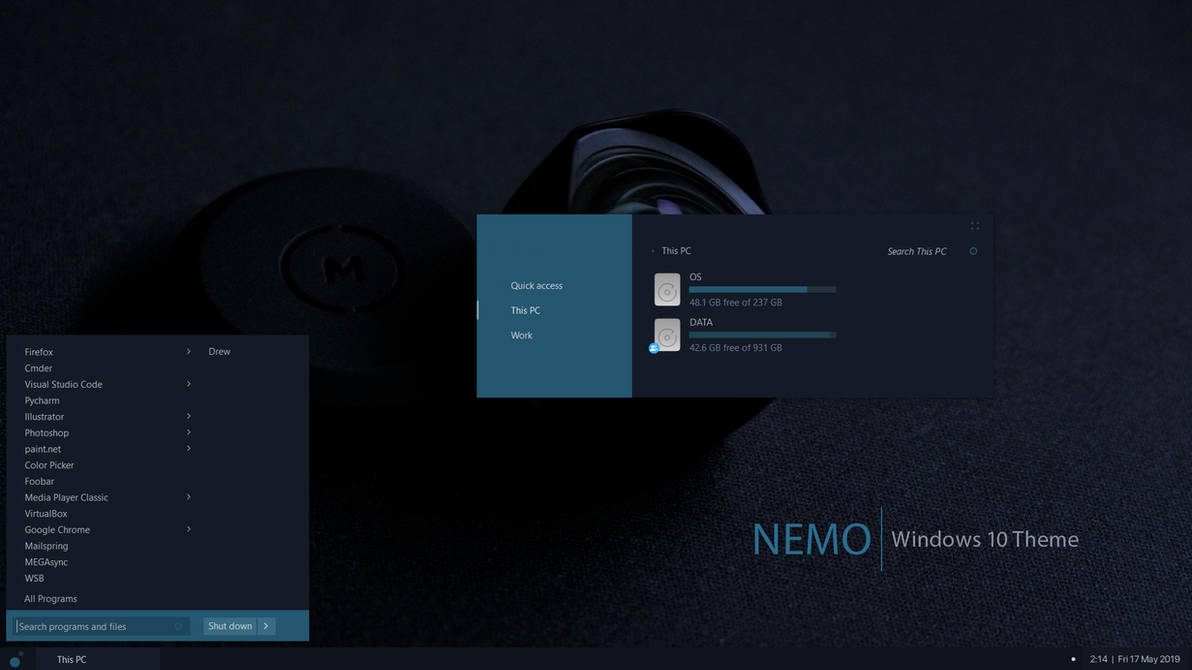
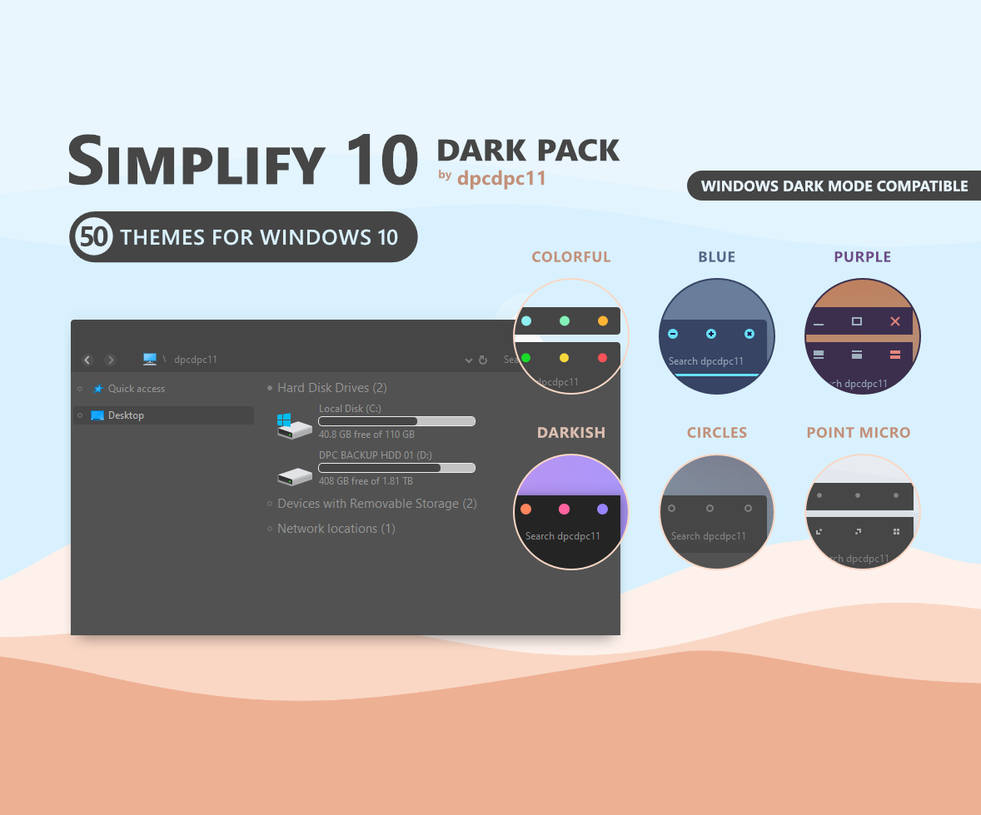
Once you've chose a theme. Please pay attention to any special instructions which may be included in the package or on the site. You'll have to move the contents of the extracted theme files folder to C:\Windows\Resources\Themes. Then apply it using the Personalize/Themes option.
If you get the bottom task pane after applying the theme, Press Alt+Shift+P to hide it.
Even More
You may opt to use StartIsBack in order to skin the Start Menu and Taskbar in Windows.
Other useful tools include.
Winaero Tweaker
Quick Access Icon Changer
Blank It
TBarIconBlanker
To Revert
To restore the original Windows 10 theme, simply right-click on your desktop and select Personalize. Then, select Themes and click on the Windows option. This is an important step to take before any major update of Windows.
You can also use the restore point created earlier. However this will not only revert your Theme to default, it will revert any icons and system configurations back to normal as well.
Conclusion
In a matter of minutes we've transformed your UI to something great! There are many other great customizations for your desktop, including Wallpapers, Icons, Rainmeter which can greatly change the UI to a whole new level. Stay tuned! Any questions, please don't hesitate to ask first.

No comments:
Post a Comment