Windows Subsystem for Android i.e. WSA allows your device to run Android apps natively in Windows 11.
This article explains how to set up WSA in Windows 11 to Run Android Apps. WSA runs as a virtual machine using Hyper-V and is based on AOSP version 11. Also, The feature is only available for Windows Insiders in Beta Channel as of now.
Requirements
As of now, WSA has some specific requirements. With time, some pre-requisites like Region would be eased. See the following requirements:
- Your Device must be running Build 22000 and meeting the requirements for Windows 11, including supported processors.
- The Computer must support virtualization and be enabled in BIOS/UEFI and Optional Features.
- The device must have at least 8GB of RAM and SSD as a Storage device. For WSA, a Hard drive is not supported.
- The Store version must be 22110.1402.6.0 or higher. Go to Store Library to update.
- The PC's Region must be set to the US.
- The Amazon account you plan to use must be US-based.
- Your PC must be in Windows Insider Program Beta Channel.
If these requirements are met, follow the steps below to set up and use Windows Subsystem for Android.
Getting started with Windows Subsystem for Android
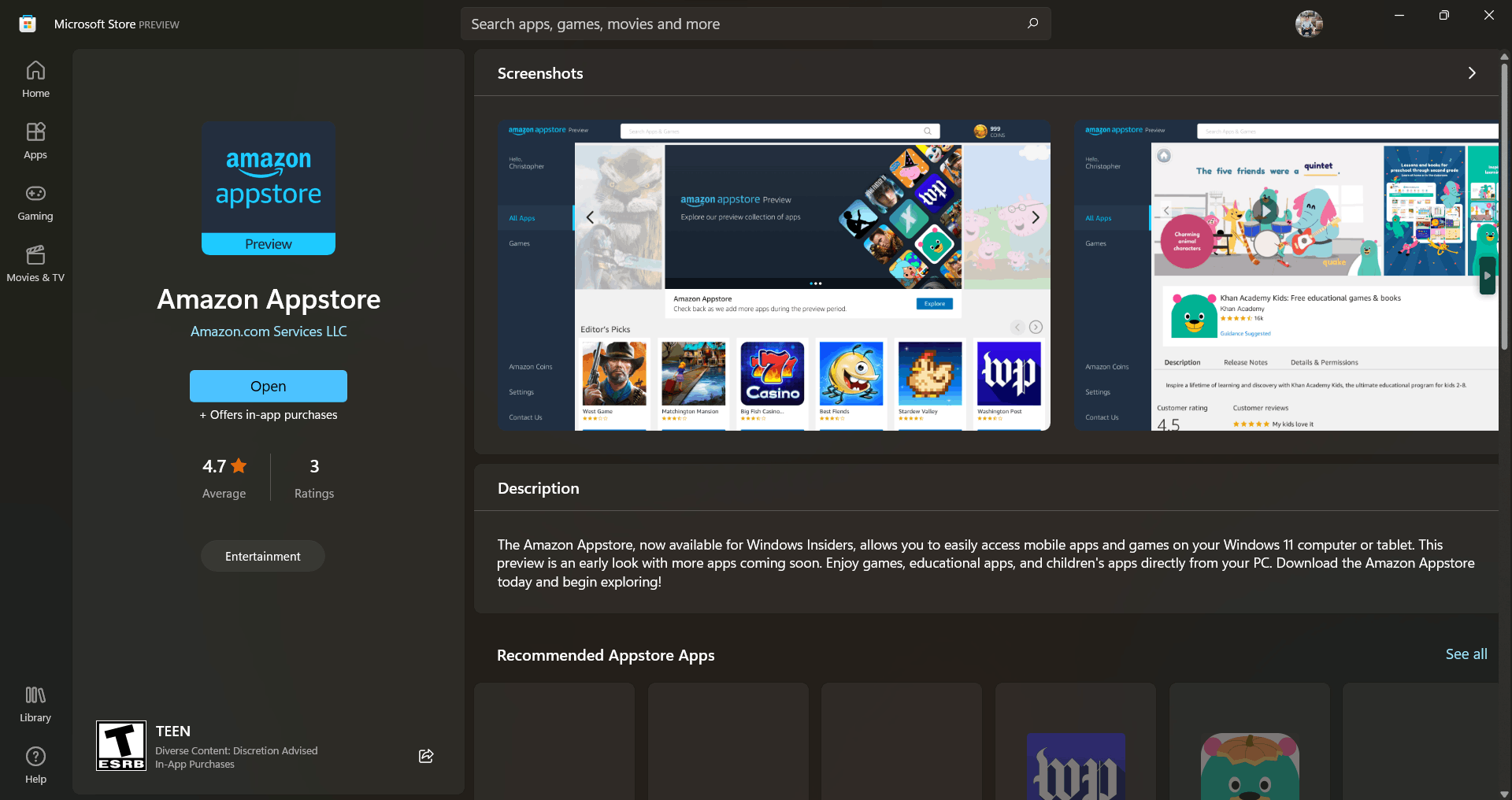
- Open the Amazon App store from this link.
- Click Install. It would download Amazon AppStore and Windows subsystem for Android.
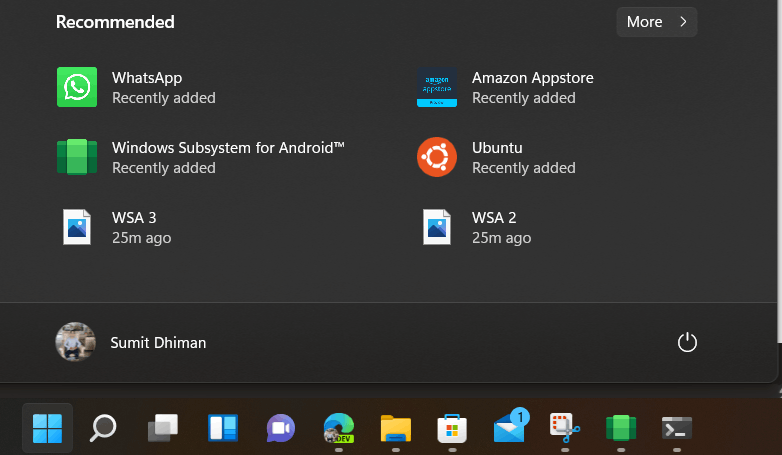
- When done, you would see the Windows subsystem for Android on your app list, together with Amazon AppStore.
- Open the Amazon AppStore, and sign in with your US-based Amazon Account on the screen that shows.
- Locate your App in the catalog and click Install. At the time of writing, only around 50 apps are available in the Store, but Microsoft will update the list over time.
 |
| Amazon AppStore started using WSA |
 F
F- files show the files which Apps download to the Device.
- Subsystem Screen reader helps accessibility-wise, like screen reading on in Android apps you plan to run.
- Developer mode helps you to sideload an APK file manually using ADB. See here
- Resources: If the Subsystem is selected As needed, no resources are used in the Background, so as a result, apps open slowly. If a continuous option is selected, resources continue to be used in the Background, and Apps open quickly.
These steps can help you get started with running Android apps using Windows Subsystem for Android on Windows 11. Hopefully, it would be available for the general public soon.

No comments:
Post a Comment