Sunday, March 6, 2022

Use Windows Subsystem for Android in Windows 11

Windows Subsystem for Android i.e. WSA allows your device to run Android apps natively in Windows 11.

This article explains how to set up WSA in Windows 11 to Run Android Apps. WSA runs as a virtual machine using Hyper-V and is based on AOSP version 11. Also, The feature is only available for Windows Insiders in Beta Channel as of now.
Requirements

As of now, WSA has some specific requirements. With time, some pre-requisites like Region would be eased. See the following requirements:

  1. Your Device must be running Build 22000 and meeting the requirements for Windows 11, including supported processors.
  2. The Computer must support virtualization and be enabled in BIOS/UEFI and Optional Features.
  3. The device must have at least 8GB of RAM and SSD as a Storage device. For WSA, a Hard drive is not supported.
  4. The Store version must be 22110.1402.6.0 or higher. Go to Store Library to update.
  5. The PC's Region must be set to the US.
  6. The Amazon account you plan to use must be US-based.
  7. Your PC must be in Windows Insider Program Beta Channel.

If these requirements are met, follow the steps below to set up and use Windows Subsystem for Android.

Getting started with Windows Subsystem for Android

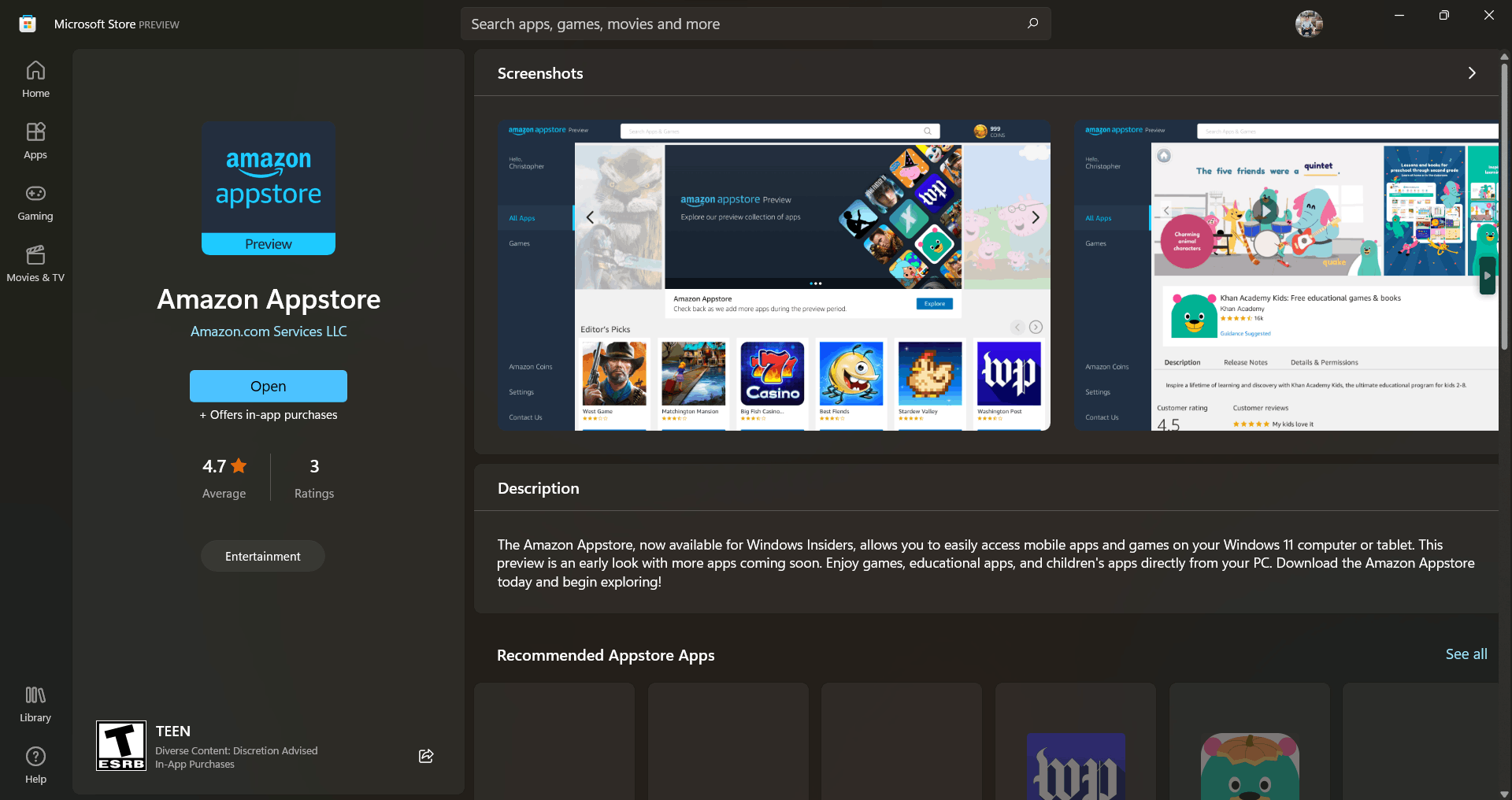
  1. Open the Amazon App store from this link.
  2. Click Install. It would download Amazon AppStore and Windows subsystem for Android.
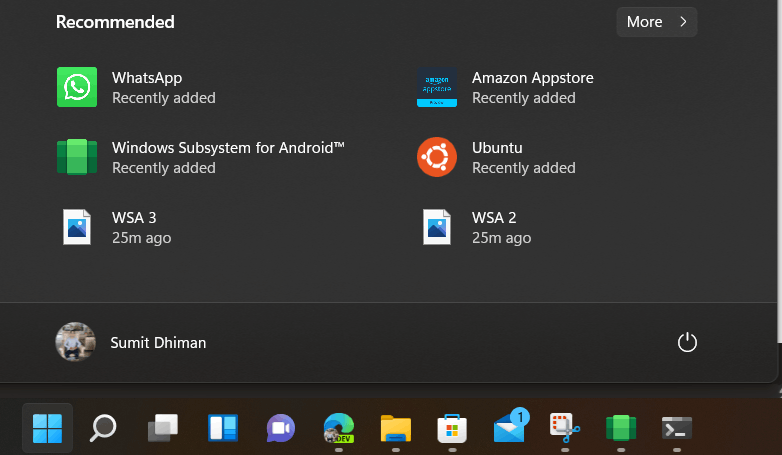
  3. When done, you would see the Windows subsystem for Android on your app list, together with Amazon AppStore.
  4. Open the Amazon AppStore, and sign in with your US-based Amazon Account on the screen that shows.
  5. Locate your App in the catalog and click Install. At the time of writing, only around 50 apps are available in the Store, but Microsoft will update the list over time.

Amazon AppStore started using WSA
Windows Subsystem for Android Settings.

There are also a bunch of Android Settings you can customize as well, which are as under.

F
  1. files show the files which Apps download to the Device.
  2. Subsystem Screen reader helps accessibility-wise, like screen reading on in Android apps you plan to run.
  3. Developer mode helps you to sideload an APK file manually using ADB. See here
  4. Resources: If the Subsystem is selected As needed, no resources are used in the Background, so as a result, apps open slowly. If a continuous option is selected, resources continue to be used in the Background, and Apps open quickly.

These steps can help you get started with running Android apps using Windows Subsystem for Android on Windows 11. Hopefully, it would be available for the general public soon.

Monday, February 28, 2022

How to Fix Time and Date Issues in Windows 11 / 10 and 7 | 6 Different Methods in 2022

If your computer is showing the wrong date or time then you will face significant difficulty in some applications especially if you are browsing. In order to fix this issue follow these simple fixes and your computer will be showing the right time and date just like before.

Fix-1 Set time automatically-

You can always enable your computer to show time automatically

1. Press Windows key+I together to open the Settings window on your computer.

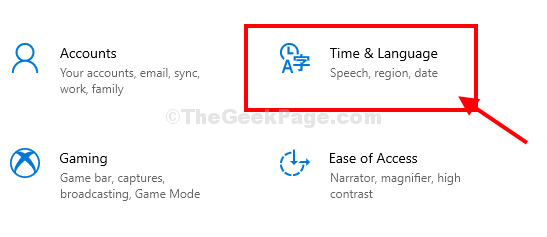
2. Now, click on “Time & Language” in the Settings window.

Time And Launguage Settings


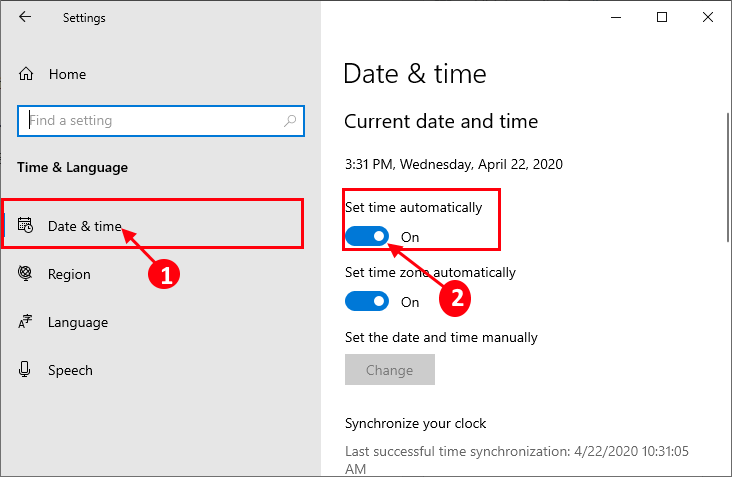
3. In the Settings window, on the left-hand side click on “Date & time“.

4. Now, on the right-hand side of the same window, under Current date and time settings, toggle “Set time automatically” to “On“.

Set Time Automatically New


Close the Settings window and restart your computer.
Check if it works or not.

For Windows 11 users

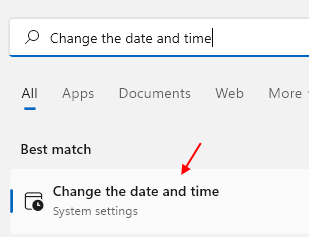
1 – Open Windows search and Type Change the date and time in it and click on search result.

Change Date Time Settings Search Min

2 – Make sure the Set time automatically option is turned to “On“.

Set Time Automatically Min

Fix-2 Automate Windows Time service-

Automate Windows Time service on your computer.

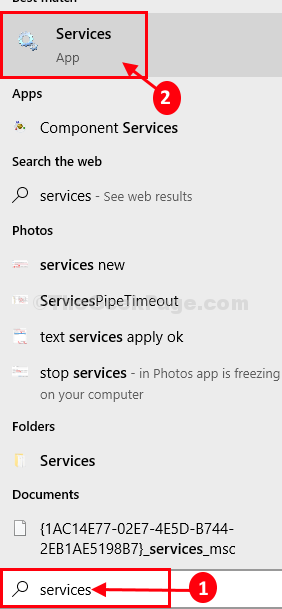
1. Click on the Search box beside the Windows icon and then type “services“.

2. Now, click on “Services” in the search results to open the Services window.

Services New

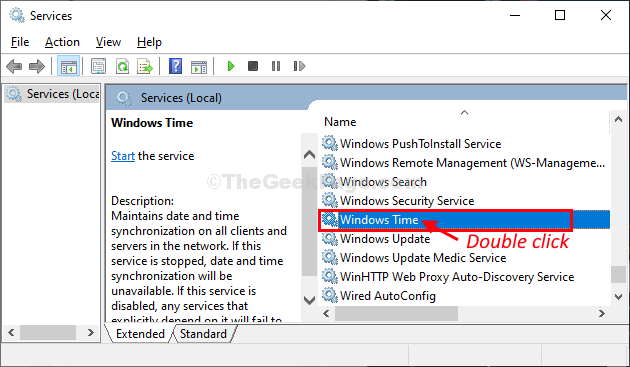
3. In the Services window, scroll down and double click on “Windows Time“.

Windows Time Double Click

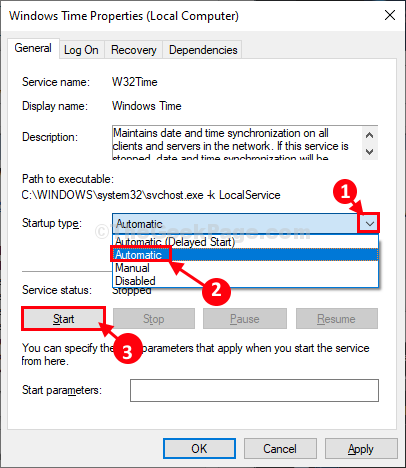
4. In the Windows Time Properties window, click on ‘Startup type:‘ and then choose “Automatic” from the drop-down list.

5. Now, click on “Start” to start the service on your computer.

Windows Time Automatic

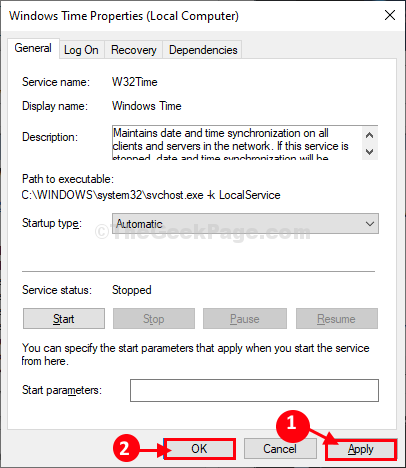
6. Finally, click on “Apply” and then on “OK” to save the changes.

Apply Ok Windows Time


Close Services window.

Reboot your computer to witness the changes on your computer.

After rebooting check the time and date settings on your computer.

Fix-3 Set time according to Internet Time settings-

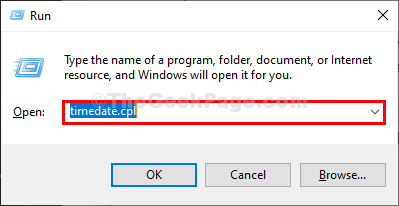
1. Press Windows key+R to launch the Run window on your computer.

2. Type this run command in the Run window and then hit Enter. The date and Time window will be opened.

timedate.cpl

Time Date Settings

2. In the Date and Time window, go to the “Internet Time” tab and then click on “Change settings…“.

Date And Time Change Settings

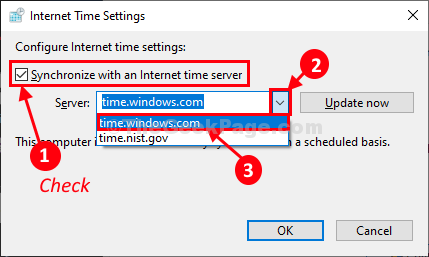
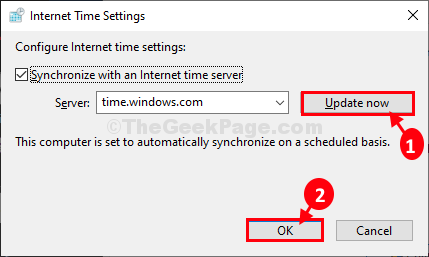
3. In the Internet Time Settings window, check the option “Synchronize with an Internet time server“.

4. Now, click on ‘Server:‘ and choose “time.windows. com” server from the drop-down.

Internet Time Settings New

5. Then click on “Update Now“. Finally, click on “OK” to save the changes on your computer.

Udpate Now

6. In the Date and Time settings window, click on “Apply” and “OK” to save the changes on your computer.

Apply And Ok

Close Settings window. Check if you are still facing the same problem at your end or not. Your problem should be solved.

Fix-4 Reset w32time.dll from CMD-

Res-registering w3time.dll from Command Prompt may work out for you.

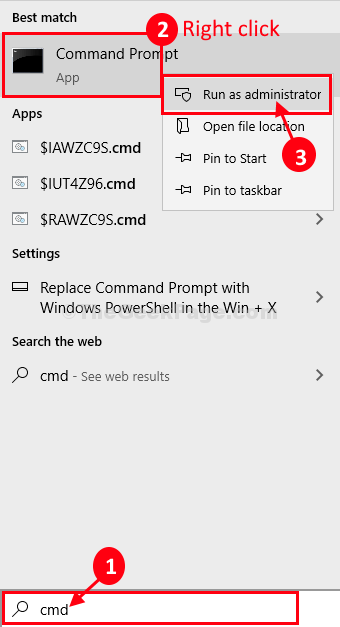
1. Click on the Search box beside the Windows icon and then type “cmd“.

2. Then, right-click on “Command Prompt” in the elevated search result and choose “Run as administrator“.

Cmd Search

Command Prompt with administrative rights will be opened.

3. In Command Prompt window, copy-paste this command and then hit Enter to execute it on your computer.

regsvr32 w32time.dll

After executing the command, close the Command Prompt window.

Restart your computer to save the changes.

Check if it works or not.

Fix-5 Set time and date manually-

If nothing is working out, set time and date manually-

1 – Open Windows search and Type Change the date and time in it and click on search result.

Change Date Time Settings Search Min

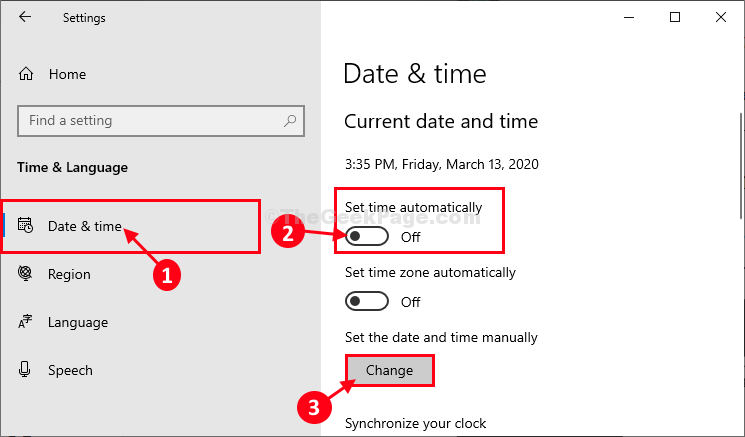
2 – Now, Turn Off Set Time automatically option to off.

Now, click on change.

Set Time Automaticallu

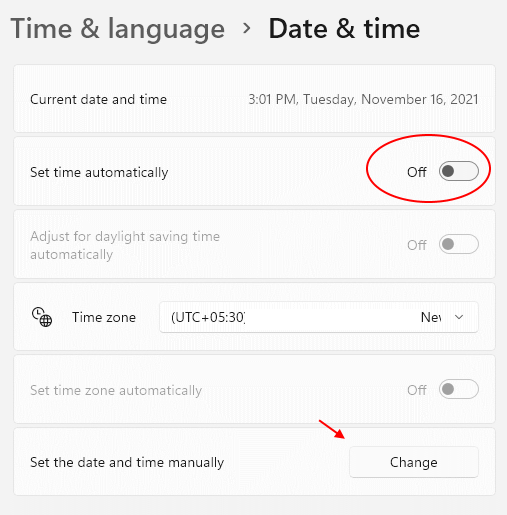
For Windows, 11 users screenshot will look like the one given below

Change Date Time Min

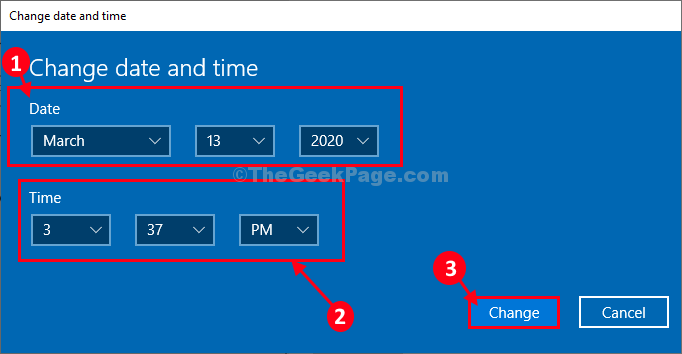
5. In the Change date and time window, click on “Date” to change the date to the actual date.

6. Repeat the same feat for “Time” by setting the right time.

7. Now, Click on “Change“.

Change Date

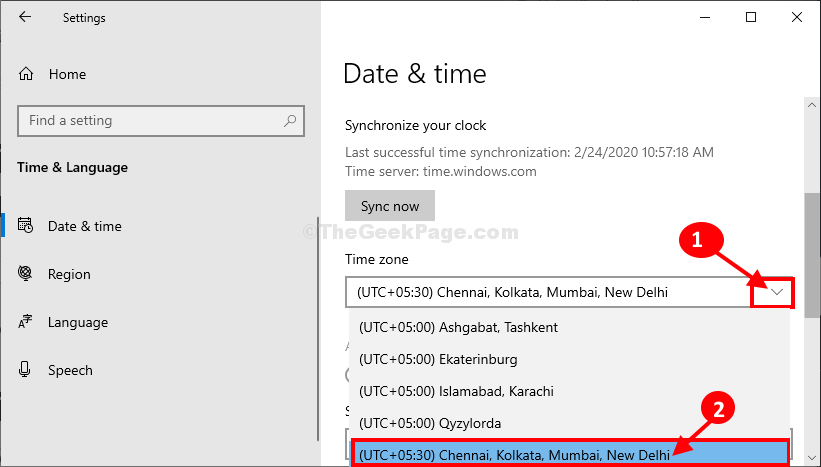
8.  Now, in the Settings window, scroll down and find ‘Time Zone‘.

9. Click on the drop-down and then select the time zone you are currently in*.

Time Zone Final Copy

*NOTE– You will notice the same time zone for a variety of locations. Choose the particular time zone where you are.

  • Close Settings window.
  • Now, reboot your computer.
  • After rebooting check the time and date settings.
  • Your problem will be solved.

Fix-6 Using Registry Editor

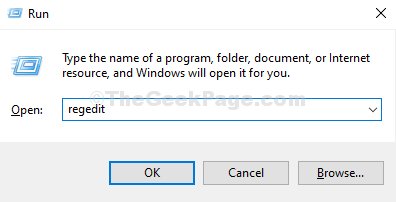
1. Press Windows key + R key together to open Run.

2. Now, Type Regedit in it and click OK.


Press Win + R To Open Run Box, Type Regedit, Hit Ok


3. After it opens up, before proceeding, take a registry backup.

Now, Move to the following location in the registry editor.

HKEY_LOCAL_MACHINE\SYSTEM\CurrentControlSet

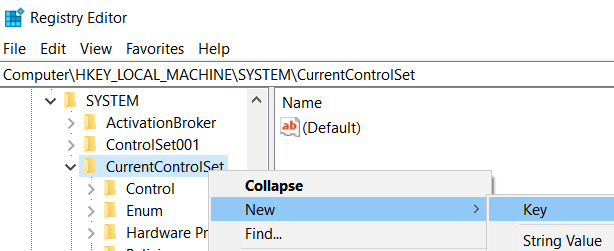
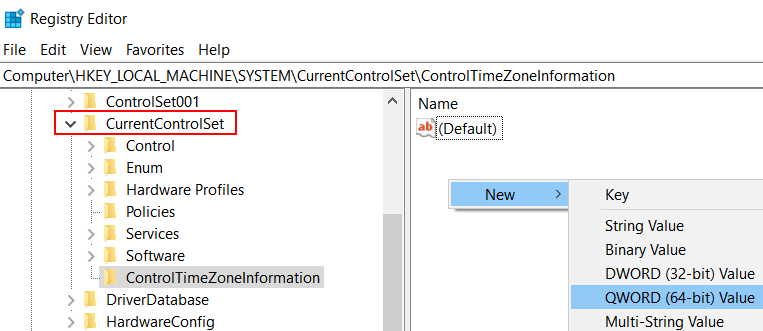
4. Now, locate ControlTimeZoneInformation in the left menu, if it does not exist, Right-click on CurrentControlSet and create a new key.

Right Click New Key

5. name it ControlTimeZoneInformation .

6. Now, on the right side, right-click on empty space anywhere and click on New > Dword (64 bit).

Name it as RealTimeIsUniversal .

New Dword 64 Bit

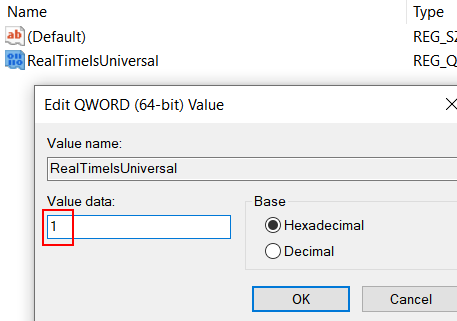
7. Double click on RealTimeIsUniversal  . Change Value data to 1.

Valuedata0real


Note: If still your problem is not solved, try to change your BIOS battery as it may be the reason behind this. As BIOS is having no battery backup, it fails to update time after the computer is shut down.

Sunday, February 20, 2022

HTML Essential Training - Formatting Text - LinkedIn Learning QUIZ Answers(Bold Text) with Explanation

Question 1 of 21

How many elements are there in the following HTML code?

<h1> The End of the World is Nigh </h1> <article> Musings on our Current Social Predicament, by <em> Trans I. Tory </em> <p> Random content….</p> </article>

Question 2 of 21

Which code produces the output shown in the image below?

Text demonstrating the superscript, subscript, and small tags

Question 3 of 21

How do we use HTML elements in combination with each other?

Question 4 of 21

Which two elements are used to mark-up subscript and superscript text?

Question 5 of 21

Which HTML code snippet produces the output shown in this image?

Text broken into separate lines or paragraphs

Question 6 of 21

When deciding which headline level to use (h1, h2, h3, h4, h5, h6) which of these statements is true?

Question 7 of 21

Which markup is correct?

Question 8 of 21

Which tag preserves the spaces, tabs, and line breaks within a piece of text so a poem or piece of code can be presented faithfully?

Question 9 of 21

Which HTML element has the correct structure?

Question 10 of 21

How does the break tag differ from most other inline and block tags?

Question 11 of 21

Why is it important to remember to use closing tags?

Question 12 of 21

Which elements are used to mark-up code on screen?

Question 13 of 21

Which type of element is typically a block?

Question 14 of 21

What's a true statement about the difference between the <blockquote> element and the <q> element?

Question 15 of 21

In the tag below, what do we call "datetime"?

<time datetime="2024-03-07"> March, 7, 2024</time>

Question 16 of 21

Which is a true statement about HTML lists?

Question 17 of 21

Besides visual appearance, what is most important about headline levels?

Question 18 of 21

When we want to convey importance, seriousness, or urgency, which element do we use?

Question 19 of 21

Which elements are used to convey meaning, instead of just typesetting convention?

Question 20 of 21

What code produces the list shown in this image?

List demonstration text

Question 21 of 21

How many different headline levels are displayed in the image shown below?

Text containing a series of different headlines and normal text